crwdns2933423:0crwdne2933423:0
crwdns2947577:0crwdnd2947577:0crwdne2947577:0

Google Pixel 5a Screen Adhesive Installation

crwdns2942213:0crwdne2942213:0

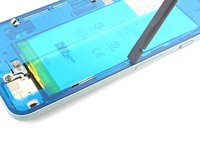
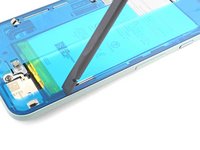
    1. Google Pixel 5a Screen Adhesive Installation, Remove adhesive residue from the frame: crwdns2935265:01crwdnd2935265:01crwdnd2935265:03crwdne2935265:0 Google Pixel 5a Screen Adhesive Installation, Remove adhesive residue from the frame: crwdns2935265:01crwdnd2935265:02crwdnd2935265:03crwdne2935265:0 Google Pixel 5a Screen Adhesive Installation, Remove adhesive residue from the frame: crwdns2935265:01crwdnd2935265:03crwdnd2935265:03crwdne2935265:0
      crwdns2935267:0crwdne2935267:0
      Tweezers
      $4.99
      • Peel off as much adhesive as you can with a pair of tweezers.

      • Use a spudger to scrape away any lingering adhesive.

      • Don't use metal tools to scrape away adhesive as this will damage the frame.

      • For best results, clean the area underneath the removed adhesive with 90% or greater isopropyl alcohol to prep the surface for the new adhesive.

      crwdns2952109:0crwdne2952109:0

      crwdns2917038:0crwdne2917038:0

    2. Google Pixel 5a Screen Adhesive Installation, Remove adhesive residue from the screen: crwdns2935265:02crwdnd2935265:01crwdnd2935265:03crwdne2935265:0 Google Pixel 5a Screen Adhesive Installation, Remove adhesive residue from the screen: crwdns2935265:02crwdnd2935265:02crwdnd2935265:03crwdne2935265:0 Google Pixel 5a Screen Adhesive Installation, Remove adhesive residue from the screen: crwdns2935265:02crwdnd2935265:03crwdnd2935265:03crwdne2935265:0
      • Repeat the previous step for the screen adhesive.

      • Don't use metal tools to scrape away adhesive as this will damage the screen.

      • Don't use isopropyl alcohol near the front camera bracket as it will loosen its adhesive.

      crwdns2952109:0crwdne2952109:0

      crwdns2917038:0crwdne2917038:0

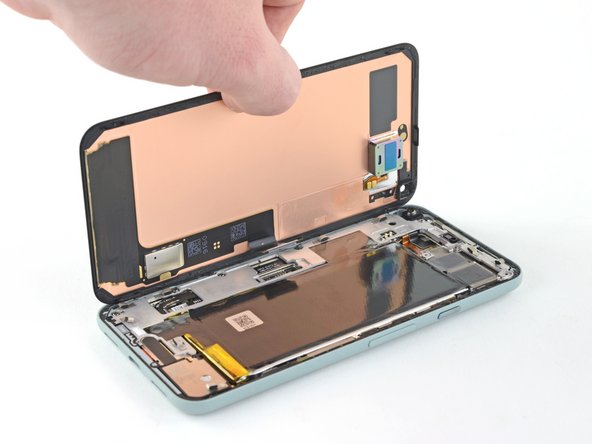
    3. Google Pixel 5a Screen Adhesive Installation, Align the adhesive: crwdns2935265:03crwdnd2935265:01crwdnd2935265:01crwdne2935265:0
      • Use the front camera and corners of the frame to correctly align the adhesive.

      crwdns2952109:0crwdne2952109:0

      crwdns2917038:0crwdne2917038:0

    4. Google Pixel 5a Screen Adhesive Installation, Prepare the adhesive: crwdns2935265:04crwdnd2935265:01crwdnd2935265:01crwdne2935265:0
      • Peel away the clear plastic lining to expose the frame side of the adhesive.

      crwdns2952109:0crwdne2952109:0

      crwdns2917038:0crwdne2917038:0

    5. Google Pixel 5a Screen Adhesive Installation, Apply the adhesive: crwdns2935265:05crwdnd2935265:01crwdnd2935265:02crwdne2935265:0 Google Pixel 5a Screen Adhesive Installation, Apply the adhesive: crwdns2935265:05crwdnd2935265:02crwdnd2935265:02crwdne2935265:0
      • Be very careful during this step! The adhesive is very sticky and can't be repositioned once it sticks. Misaligned adhesive can lead to an improper seal.

      • Lower the adhesive onto the frame.

      • Use the front camera and corners to help align the adhesive during installation.

      crwdns2952109:0crwdne2952109:0

      crwdns2917038:0crwdne2917038:0

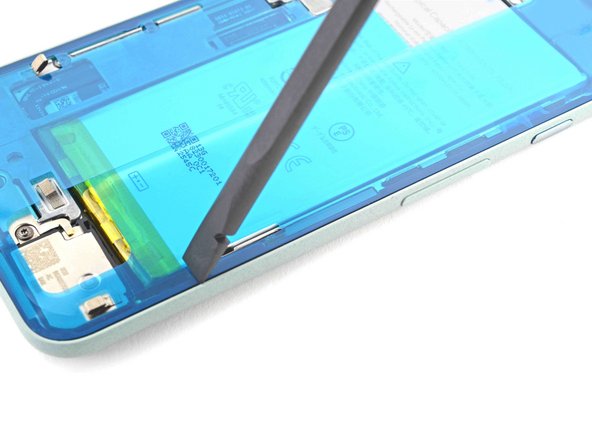
    6. Google Pixel 5a Screen Adhesive Installation, Secure the adhesive to the frame: crwdns2935265:06crwdnd2935265:01crwdnd2935265:02crwdne2935265:0 Google Pixel 5a Screen Adhesive Installation, Secure the adhesive to the frame: crwdns2935265:06crwdnd2935265:02crwdnd2935265:02crwdne2935265:0
      • Use the flat end of a spudger or your fingernail to press down on the adhesive.

      • Slide along the perimeter to secure the adhesive to the frame.

      crwdns2952109:0crwdne2952109:0

      crwdns2917038:0crwdne2917038:0

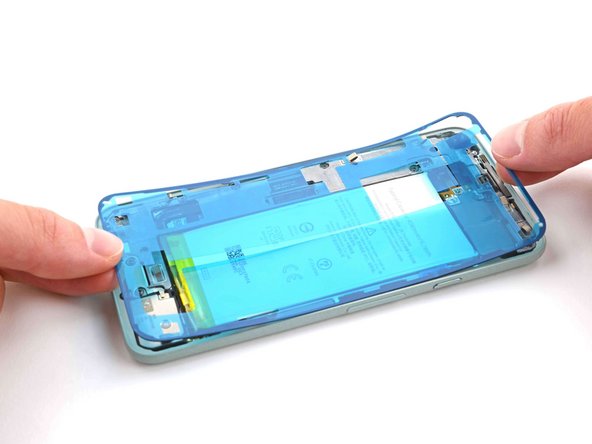
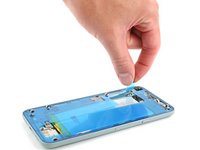
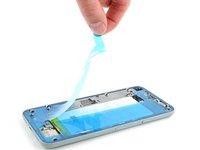
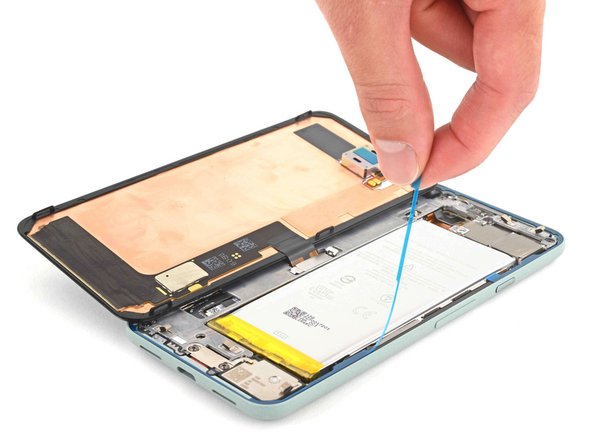
    7. Google Pixel 5a Screen Adhesive Installation, Peel away the outer plastic lining: crwdns2935265:07crwdnd2935265:01crwdnd2935265:02crwdne2935265:0 Google Pixel 5a Screen Adhesive Installation, Peel away the outer plastic lining: crwdns2935265:07crwdnd2935265:02crwdnd2935265:02crwdne2935265:0
      • Use your fingers to grasp the blue plastic lining near the center and peel it away from the phone.

      • This should leave a thin perimeter of adhesive still covered by blue plastic lining.

      crwdns2952109:0crwdne2952109:0

      crwdns2917038:0crwdne2917038:0

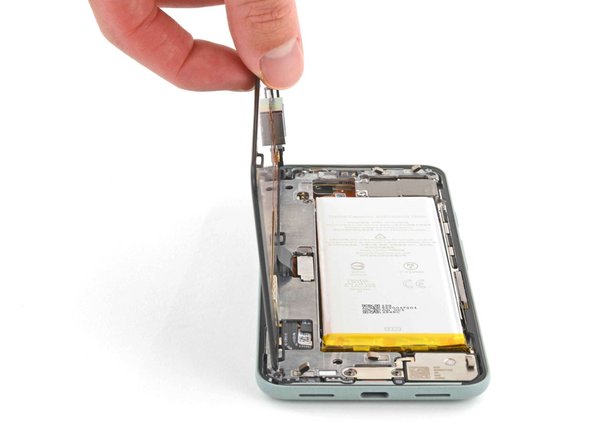
    8. Google Pixel 5a Screen Adhesive Installation, Connect the screen: crwdns2935265:08crwdnd2935265:01crwdnd2935265:02crwdne2935265:0 Google Pixel 5a Screen Adhesive Installation, Connect the screen: crwdns2935265:08crwdnd2935265:02crwdnd2935265:02crwdne2935265:0
      • Follow the screen replacement guide in reverse order and connect the screen to your pixel.

      • Remember to reinstall the screen connector bracket.

      • If you replaced the screen, check the screen's front-facing camera hole and remove any protective liners covering it.

      crwdns2952109:0crwdne2952109:0

      crwdns2917038:0crwdne2917038:0

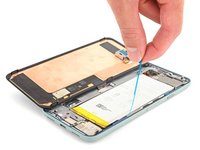
    9. Google Pixel 5a Screen Adhesive Installation, Peel away the remaining plastic lining: crwdns2935265:09crwdnd2935265:01crwdnd2935265:02crwdne2935265:0 Google Pixel 5a Screen Adhesive Installation, Peel away the remaining plastic lining: crwdns2935265:09crwdnd2935265:02crwdnd2935265:02crwdne2935265:0
      • Peel away the blue plastic lining to expose the perimeter adhesive.

      crwdns2952109:0crwdne2952109:0

      crwdns2917038:0crwdne2917038:0

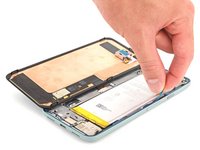
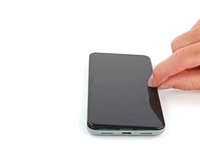
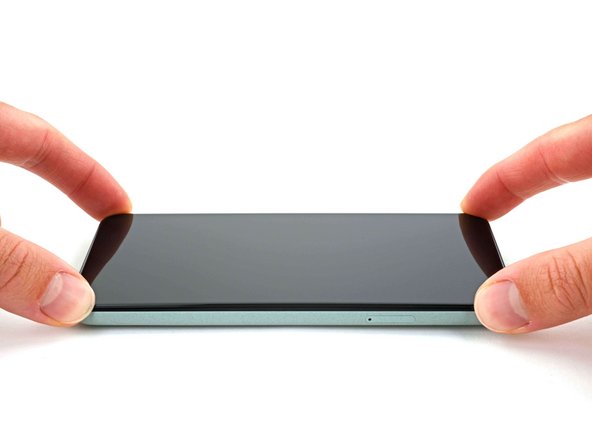
    10. Google Pixel 5a Screen Adhesive Installation, Position the screen: crwdns2935265:010crwdnd2935265:01crwdnd2935265:03crwdne2935265:0 Google Pixel 5a Screen Adhesive Installation, Position the screen: crwdns2935265:010crwdnd2935265:02crwdnd2935265:03crwdne2935265:0 Google Pixel 5a Screen Adhesive Installation, Position the screen: crwdns2935265:010crwdnd2935265:03crwdnd2935265:03crwdne2935265:0
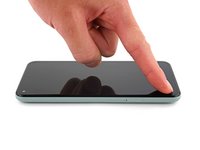
      • Position the screen so it lays on the frame.

      crwdns2952109:0crwdne2952109:0

      crwdns2917038:0crwdne2917038:0

    11. Google Pixel 5a Screen Adhesive Installation, Press down the screen corners: crwdns2935265:011crwdnd2935265:01crwdnd2935265:02crwdne2935265:0 Google Pixel 5a Screen Adhesive Installation, Press down the screen corners: crwdns2935265:011crwdnd2935265:02crwdnd2935265:02crwdne2935265:0
      • Press down the corners of the screen to secure them to the frame.

      crwdns2952109:0crwdne2952109:0

      crwdns2917038:0crwdne2917038:0

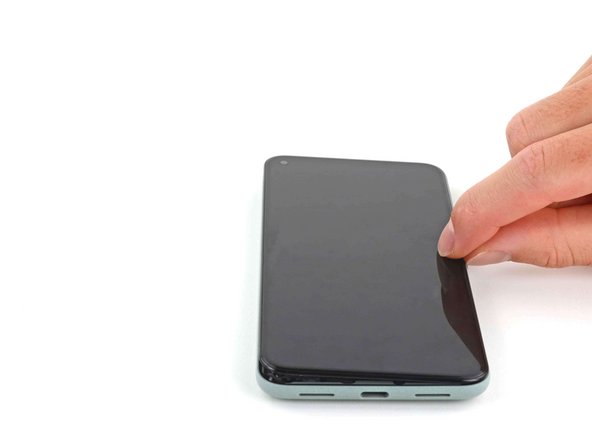
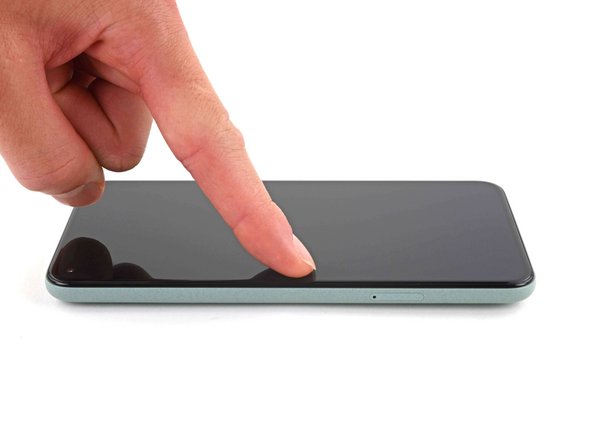
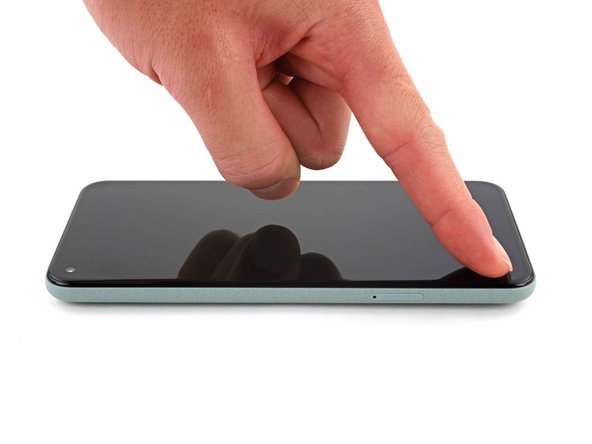
    12. Google Pixel 5a Screen Adhesive Installation, Secure the screen to the frame: crwdns2935265:012crwdnd2935265:01crwdnd2935265:03crwdne2935265:0 Google Pixel 5a Screen Adhesive Installation, Secure the screen to the frame: crwdns2935265:012crwdnd2935265:02crwdnd2935265:03crwdne2935265:0 Google Pixel 5a Screen Adhesive Installation, Secure the screen to the frame: crwdns2935265:012crwdnd2935265:03crwdnd2935265:03crwdne2935265:0
      • Press down on the edges of the screen.

      • Slide along the perimeter to secure it to the frame.

      • You can heat the perimeter of the screen to soften the adhesive and help it bond more securely.

      crwdns2952109:0crwdne2952109:0

      crwdns2917038:0crwdne2917038:0

crwdns2915888:0crwdne2915888:0

Repair didn’t go as planned? Try some basic troubleshooting, or ask our Pixel 5a Answers community for help.

crwdns2935221:0crwdne2935221:0

crwdns2935229:019crwdne2935229:0

Chayton Ritter

crwdns2935283:008/21/20crwdne2935283:0

27.207 crwdns2915208:0crwdne2915208:0

crwdns2935297:0105crwdne2935297:0

crwdns2935287:0crwdne2935287:0

Guide Team crwdns2935289:0Guide Teamcrwdne2935289:0

Staff

crwdns2931471:010crwdne2931471:0

crwdns2935297:052.541crwdne2935297:0

crwdns2947412:05crwdne2947412:0

Pretty easy. Maybe 20 mins job. Nice guide.

Toby Phillippe - crwdns2934203:0crwdne2934203:0 crwdns2950251:0crwdne2950251:0
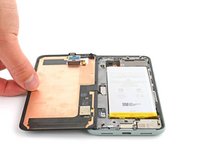
What is the stack of books for?

ccc - crwdns2934203:0crwdne2934203:0 crwdns2950251:0crwdne2950251:0
Hey there!

Usually you would place a stack of books or 2L+ bottle of water on top of the device to apply extra force to the adhesive and leave it for some time, like 30-60 minutes. That would ensure better adhesion for the replacement screen. It is not necessary nowadays, but it's an old-school style way of gluing things together and seasoned repair techs still place something heavy on top of the device when replacing glued-in components

Nastya Grifon - crwdns2934203:0crwdne2934203:0 crwdns2950251:0crwdne2950251:0

Excellent instructions. I was able to get through this no problem.

Chrystian - crwdns2934203:0crwdne2934203:0 crwdns2950251:0crwdne2950251:0

Bought the kit and followed this guide, worked perfectly. Thanks Ifixit for helping me fix my phone.

David Helton - crwdns2934203:0crwdne2934203:0 crwdns2950251:0crwdne2950251:0

crwdns2917038:0crwdne2917038:0

crwdns2936625:0crwdne2936625:0:

crwdns2936751:024crwdne2936751:0 0

crwdns2936753:07crwdne2936753:0 7

crwdns2936753:030crwdne2936753:0 41

crwdns2942667:0crwdne2942667:0 8,529