crwdns2933423:0crwdne2933423:0
crwdns2947577:0crwdnd2947577:0crwdne2947577:0

Fujitsu Lifebook A6110 RAM Replacement

crwdns2942213:0crwdne2942213:0

    1. Fujitsu Lifebook A6110 RAM Replacement, Battery: crwdns2935265:01crwdnd2935265:01crwdnd2935265:02crwdne2935265:0 Fujitsu Lifebook A6110 RAM Replacement, Battery: crwdns2935265:01crwdnd2935265:02crwdnd2935265:02crwdne2935265:0
      • The computer should be fully turned off and disconnected from the power source.

      • Before handling electronic components, you should ground yourself. This will prevent damage to the components from a static charge. You can do this by touching any metal object.

      • Flip your laptop so that the bottom of the laptop is facing up and the hinges of the screen are closest to you.

      crwdns2952109:0crwdne2952109:0

      crwdns2917038:0crwdne2917038:0

    2. Fujitsu Lifebook A6110 RAM Replacement: crwdns2935265:02crwdnd2935265:01crwdnd2935265:01crwdne2935265:0
      • To remove the battery, place your fingers underneath the two clips and simultaneously lift them up while pulling the cover towards you.

      crwdns2952109:0crwdne2952109:0

      crwdns2917038:0crwdne2917038:0

    1. Fujitsu Lifebook A6110 RAM Replacement, RAM: crwdns2935265:03crwdnd2935265:01crwdnd2935265:02crwdne2935265:0 Fujitsu Lifebook A6110 RAM Replacement, RAM: crwdns2935265:03crwdnd2935265:02crwdnd2935265:02crwdne2935265:0
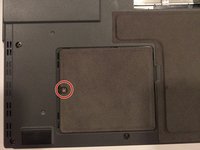
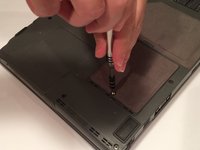
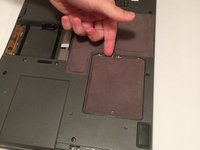
      • The RAM compartment will be located near the bottom-left corner of your lifebook. The compartment is behind the cover held in place by a 6 mm screw.

      • Using a Phillips #1 screwdriver, remove the 6 mm screw from the RAM compartment on the bottom-left corner of the rear cover.

      crwdns2952109:0crwdne2952109:0

      crwdns2917038:0crwdne2917038:0

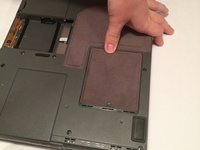
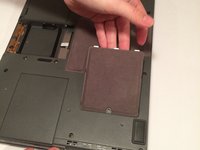
    2. Fujitsu Lifebook A6110 RAM Replacement: crwdns2935265:04crwdnd2935265:01crwdnd2935265:03crwdne2935265:0 Fujitsu Lifebook A6110 RAM Replacement: crwdns2935265:04crwdnd2935265:02crwdnd2935265:03crwdne2935265:0 Fujitsu Lifebook A6110 RAM Replacement: crwdns2935265:04crwdnd2935265:03crwdnd2935265:03crwdne2935265:0
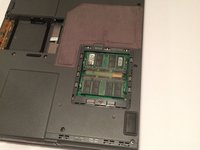
      • Slide the cover towards the screw, and then lift the cover upwards.

      crwdns2952109:0crwdne2952109:0

      crwdns2917038:0crwdne2917038:0

    3. Fujitsu Lifebook A6110 RAM Replacement: crwdns2935265:05crwdnd2935265:01crwdnd2935265:02crwdne2935265:0 Fujitsu Lifebook A6110 RAM Replacement: crwdns2935265:05crwdnd2935265:02crwdnd2935265:02crwdne2935265:0
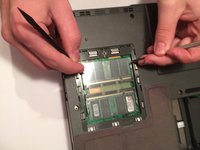
      • There are two RAM cards in this compartment. They look like small green plastic chips with black squares on each of them. These cards are beneath a thin plastic sheet that must be pulled out of the way.

      • Simultaneously pull each metal and plastic clip away from the center of the RAM stick.

      • If done correctly, the RAM card will eject at a 45 degree angle.

      crwdns2952109:0crwdne2952109:0

      crwdns2917038:0crwdne2917038:0

    4. Fujitsu Lifebook A6110 RAM Replacement: crwdns2935265:06crwdnd2935265:01crwdnd2935265:01crwdne2935265:0
      • Pull the RAM card out while maintaining the 45 degree angle it ejected at.

      • When reassembling, the gold pins on the RAM card must match the corresponding pins found on the motherboard.

      • If you choose to replace the other RAM card, repeat the process in Step 5.

      crwdns2952109:0crwdne2952109:0

      crwdns2917038:0crwdne2917038:0

crwdns2915888:0crwdne2915888:0

To reassemble your device, follow these instructions in reverse order.

crwdns2935221:0crwdne2935221:0

Cody Moniz

crwdns2935283:010/19/16crwdne2935283:0

422 crwdns2915208:0crwdne2915208:0

crwdns2935297:04crwdne2935297:0

crwdns2935287:0crwdne2935287:0

UMass Dartmouth, Team 3-2, Isaacson Fall 2016 crwdns2935289:0UMass Dartmouth, Team 3-2, Isaacson Fall 2016crwdne2935289:0

UMASSD-ISAACSON-F16S3G2

crwdns2931471:03crwdne2931471:0

crwdns2935297:060crwdne2935297:0

crwdns2947412:00crwdne2947412:0

crwdns2917038:0crwdne2917038:0

crwdns2936625:0crwdne2936625:0:

crwdns2936751:024crwdne2936751:0 6

crwdns2936753:07crwdne2936753:0 32

crwdns2936753:030crwdne2936753:0 52

crwdns2942667:0crwdne2942667:0 1,413