crwdns2933423:0crwdne2933423:0
crwdns2947577:0crwdnd2947577:0crwdne2947577:0

Framework Laptop 12 Pre-built Quick Start Guide

    1. Framework Laptop 12 Pre-built Quick Start Guide, Unbox your Framework Laptop: crwdns2935265:01crwdnd2935265:01crwdnd2935265:02crwdne2935265:0 Framework Laptop 12 Pre-built Quick Start Guide, Unbox your Framework Laptop: crwdns2935265:01crwdnd2935265:02crwdnd2935265:02crwdne2935265:0
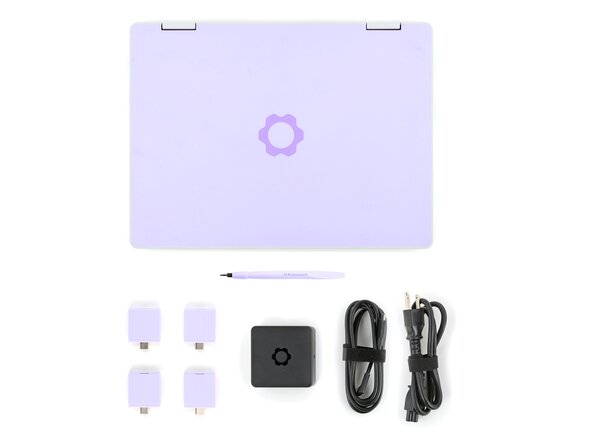
      • Unbox your Framework Laptop and make sure you've received all the items:

      • Framework Laptop 12

      • Framework Screwdriver

      • Expansion Cards you selected during purchase

      • Framework Power Adapter, USB-C Cable, and AC Cable

      crwdns2952109:0crwdne2952109:0

      crwdns2917038:0crwdne2917038:0

    2. Framework Laptop 12 Pre-built Quick Start Guide, Set your laptop on a clean surface: crwdns2935265:02crwdnd2935265:01crwdnd2935265:01crwdne2935265:0
      • Set your Framework Laptop face-down on a clean work surface.

      crwdns2952109:0crwdne2952109:0

      crwdns2917038:0crwdne2917038:0

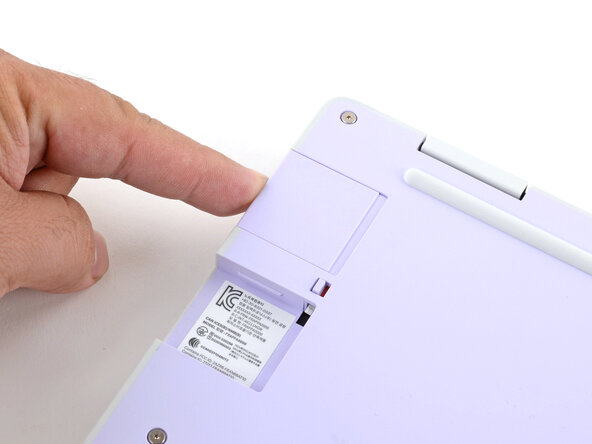
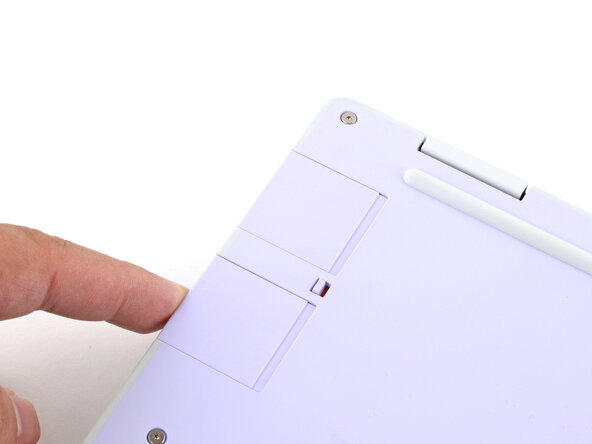
    3. Framework Laptop 12 Pre-built Quick Start Guide, Install the Expansion Cards: crwdns2935265:03crwdnd2935265:01crwdnd2935265:03crwdne2935265:0 Framework Laptop 12 Pre-built Quick Start Guide, Install the Expansion Cards: crwdns2935265:03crwdnd2935265:02crwdnd2935265:03crwdne2935265:0 Framework Laptop 12 Pre-built Quick Start Guide, Install the Expansion Cards: crwdns2935265:03crwdnd2935265:03crwdnd2935265:03crwdne2935265:0
      • Slide an Expansion Card into the Expansion Card slot.

      • All official Expansion Cards work fully in all slots, so you can install them however you wish!

      • You don't need to unlock the latches to install the Expansion Cards—only when you want to remove them.

      • The Expansion Cards should click in place, and the front edge should be flush with the laptop.

      • Repeat the procedure with the remaining expansion cards.

      crwdns2952109:0crwdne2952109:0

      crwdns2917038:0crwdne2917038:0

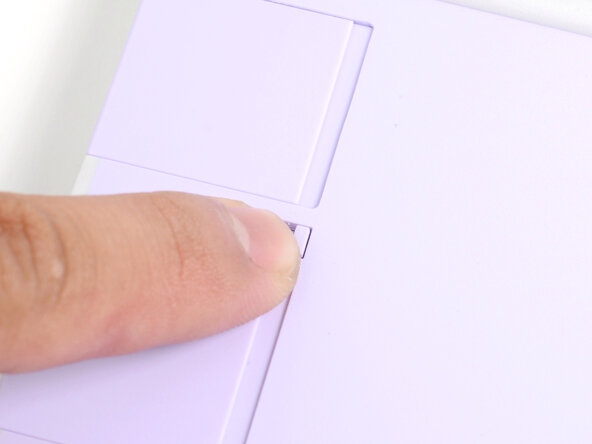
    4. Framework Laptop 12 Pre-built Quick Start Guide, Lock the Expansion Card slots: crwdns2935265:04crwdnd2935265:01crwdnd2935265:02crwdne2935265:0 Framework Laptop 12 Pre-built Quick Start Guide, Lock the Expansion Card slots: crwdns2935265:04crwdnd2935265:02crwdnd2935265:02crwdne2935265:0
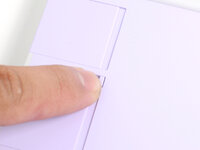
      • If there's a red bar showing under each Expansion Card latch, use your finger to flip the latch and lock the Expansion Card into its slot.

      • Locking the Expansion Card slots help keep the cards in place when you unplug cables from them.

      crwdns2952109:0crwdne2952109:0

      crwdns2917038:0crwdne2917038:0

    5. Framework Laptop 12 Pre-built Quick Start Guide, Assemble the Framework Power Adapter: crwdns2935265:05crwdnd2935265:01crwdnd2935265:03crwdne2935265:0 Framework Laptop 12 Pre-built Quick Start Guide, Assemble the Framework Power Adapter: crwdns2935265:05crwdnd2935265:02crwdnd2935265:03crwdne2935265:0 Framework Laptop 12 Pre-built Quick Start Guide, Assemble the Framework Power Adapter: crwdns2935265:05crwdnd2935265:03crwdnd2935265:03crwdne2935265:0
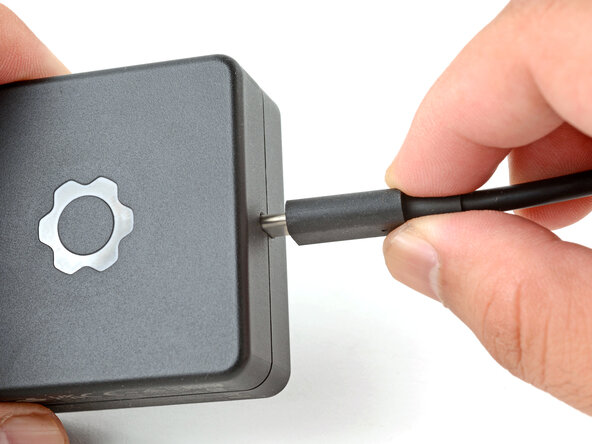
      • Plug the AC Cable into the Power Adapter.

      • Plug the USB-C Cable into the Power Adapter.

      • You can plug either end of the USB-C cable into the adapter.

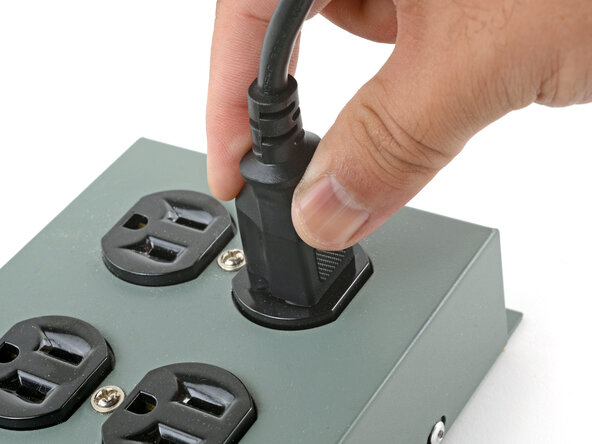
      • Plug the AC Cable into a power outlet.

      crwdns2952109:0crwdne2952109:0

      crwdns2917038:0crwdne2917038:0

    6. Framework Laptop 12 Pre-built Quick Start Guide, Plug in the laptop: crwdns2935265:06crwdnd2935265:01crwdnd2935265:01crwdne2935265:0
      • Your Framework Laptop ships in shipping mode, where the battery is disabled until you plug the laptop in for the first time.

      • Plug the USB-C cable into any USB-C port on your laptop.

      crwdns2952109:0crwdne2952109:0

      crwdns2917038:0crwdne2917038:0

    7. Framework Laptop 12 Pre-built Quick Start Guide, Turn on the laptop: crwdns2935265:07crwdnd2935265:01crwdnd2935265:01crwdne2935265:0
      • Your Framework Laptop is ready for use! Open the lid and press the power button along the right edge of the laptop.

      crwdns2952109:0crwdne2952109:0

      crwdns2917038:0crwdne2917038:0

crwdns2915888:0crwdne2915888:0

For drivers, firmware, and software updates, check out this page.

If you need help, contact Framework support.

crwdns2935221:0crwdne2935221:0

Arthur Shi

crwdns2935283:001/03/18crwdne2935283:0

345,159 crwdns2915208:0crwdne2915208:0

crwdns2935297:0915crwdne2935297:0

crwdns2935287:0crwdne2935287:0

iFixit crwdns2935289:0iFixitcrwdne2935289:0

Staff

crwdns2931471:0123crwdne2931471:0

crwdns2935297:056,318crwdne2935297:0

crwdns2947412:00crwdne2947412:0

crwdns2917038:0crwdne2917038:0

crwdns2936625:0crwdne2936625:0:

crwdns2936751:024crwdne2936751:0 0

crwdns2936753:07crwdne2936753:0 5

crwdns2936753:030crwdne2936753:0 24

crwdns2942667:0crwdne2942667:0 501