crwdns2915892:0crwdne2915892:0
The power button is pressed to power the device on or off. This guide shows how to replace the plastic button itself, not the components that make it work. If the plastic power button is damaged or otherwise needs replacement, follow this guide.
crwdns2942213:0crwdne2942213:0
-
-
Lay the device on a flat surface, with the screen facing the sufrace.
-
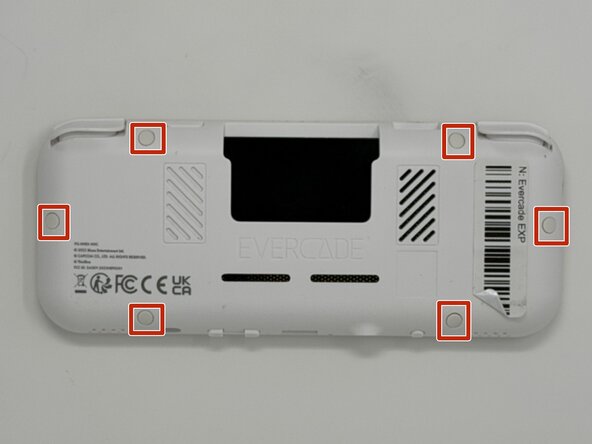
Using angled tweezers, remove the six rubber screw covers from the sockets.
 crwdns2952109:0crwdne2952109:0
-
-
-
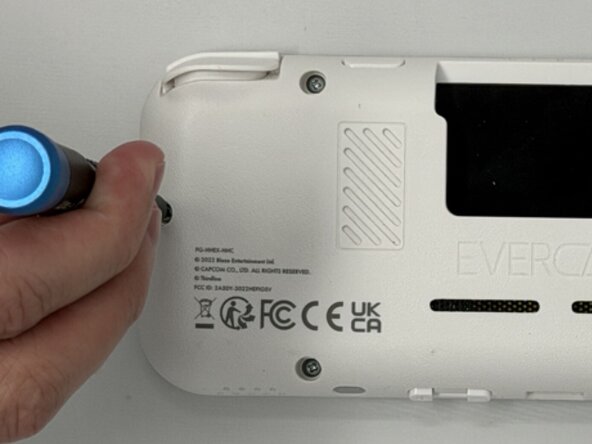
Using a Phillips #00 screwdriver, remove the six 8 mm screws on the lower case.
-
-
-
Flip the device so the screen is facing you.
-
Four hidden retaining clips hold the pieces together even near each corner of the screen.
-
Insert a Jimmy into the seam located between the faceplate and the shell.
-
Move the a Jimmy toward the screen until you find the first clasp. Move the handle of the jimmy tool up to pop the faceplate free from the clasp.
-
Repeat until for each of the four clasps to fully release the faceplate from the shell.
-
-
-
-
Flip the faceplate away from the shell carefully. The faceplate is still connected to the motherboard via a ribbon cable.
-
Flip up the locking flap securing the display ribbon cable, then use tweezers to disconnect the ribbon cable.
-
-
-
Use a Phillips #00 screwdriver to remove all ten 8 mm screws securing the motherboard.
-
-
-
Using angled tweezers, gently lift both speakers from the cavities they rest in.
-
-
-
Flip the motherboard to the outside of the console.
-
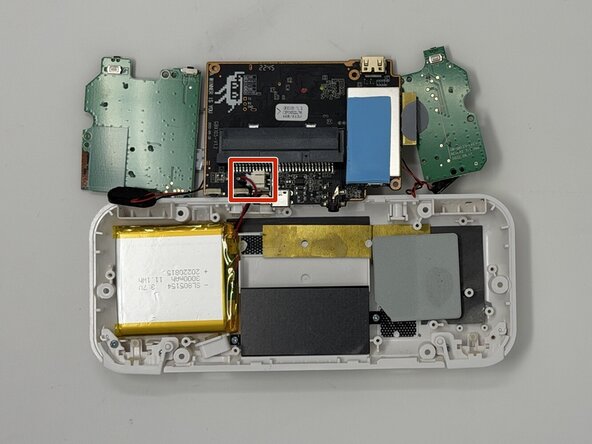
Remove the connector from the socket attached to the motherboard. The piece is held in place near the back of the socket. Apply downward pressure while pulling out to make the removal easier.
-
-
-
Use a hair dryer or a heat gun on low to apply heat to the back of the case while gently prying the battery out with an opening tool.
-
Set the battery aside for recycling.
-
-
-
Remove the plastic piece from the shell with a pair of tweezers from the inside.
-






To reassemble your device, follow these instructions in reverse order.

crwdns2935287:0crwdne2935287:0

Utah Tech University, Team 1-6, McMurrin Spring 2026 crwdns2935289:0Utah Tech University, Team 1-6, McMurrin Spring 2026crwdne2935289:0
UTAHTECH-MCMURRIN-S26S1G6
crwdns2931471:03crwdne2931471:0
crwdns2935297:07crwdne2935297:0
