crwdns2933423:0crwdne2933423:0
crwdns2947577:0crwdnd2947577:0crwdne2947577:0

Element GC-1020 Display Replacement

crwdns2942213:0crwdne2942213:0

  1. Element GC-1020 Display Replacement, Back Cover Replacement Guide: crwdns2935265:01crwdnd2935265:01crwdnd2935265:01crwdne2935265:0
    • Unscrew the four screws (size: 3.175mm) on the left and right side of the Element Electronics GC-1020 device using the PH#0 screwdriver.

    crwdns2952109:0crwdne2952109:0

    crwdns2917038:0crwdne2917038:0

  2. Element GC-1020 Display Replacement: crwdns2935265:02crwdnd2935265:01crwdnd2935265:01crwdne2935265:0
    • Carefully pull the back of the device (the silver portion) apart from the rest of the device.

    • If you pull back too forcefully the power button would move out of place.

    crwdns2952109:0crwdne2952109:0

    crwdns2917038:0crwdne2917038:0

  3. Element GC-1020 Display Replacement, Display: crwdns2935265:03crwdnd2935265:01crwdnd2935265:01crwdne2935265:0
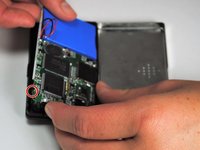
    • Unscrew the visible Philips head screws (size: 3.968 mm) on the motherboard located on the top of left and right sides. Use a PH #0 sized screw driver head for removal.

    crwdns2952109:0crwdne2952109:0

    crwdns2917038:0crwdne2917038:0

  4. Element GC-1020 Display Replacement: crwdns2935265:04crwdnd2935265:01crwdnd2935265:02crwdne2935265:0 Element GC-1020 Display Replacement: crwdns2935265:04crwdnd2935265:02crwdnd2935265:02crwdne2935265:0
    • Carefully bend the plastic frame to remove the motherboard.

    • Upon doing this make sure your power button on the bottom left side stays attached to the outer frame because it will loosen as the motherboard is moved upwards.

    crwdns2952109:0crwdne2952109:0

    crwdns2917038:0crwdne2917038:0

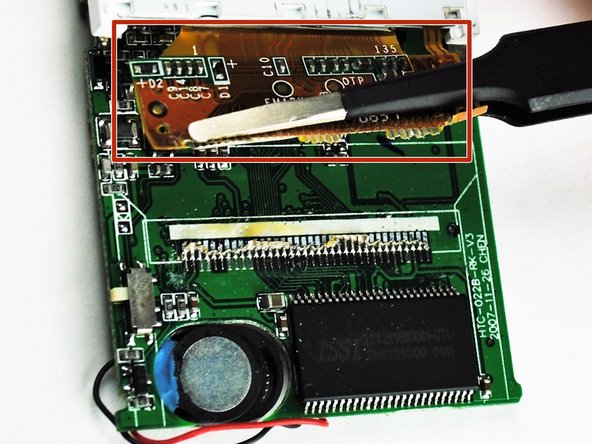
  5. Element GC-1020 Display Replacement: crwdns2935265:05crwdnd2935265:01crwdnd2935265:01crwdne2935265:0
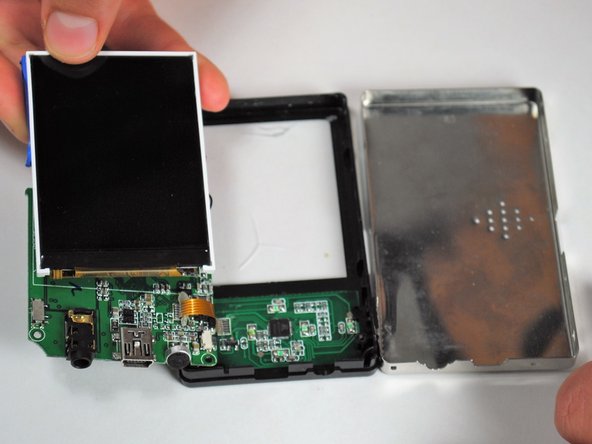
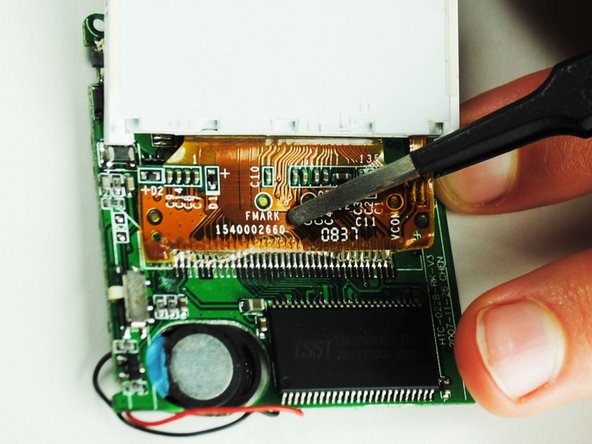
    • The display is attached to a dark yellow, flimsy, plastic material. This material is then attached to the motherboard. Tear off the plastic, successfully detaching the motherboard and display from each other.

    crwdns2952109:0crwdne2952109:0

    crwdns2917038:0crwdne2917038:0

  6. Element GC-1020 Display Replacement: crwdns2935265:06crwdnd2935265:01crwdnd2935265:03crwdne2935265:0 Element GC-1020 Display Replacement: crwdns2935265:06crwdnd2935265:02crwdnd2935265:03crwdne2935265:0 Element GC-1020 Display Replacement: crwdns2935265:06crwdnd2935265:03crwdnd2935265:03crwdne2935265:0
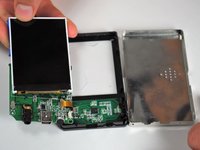
    • Once the display is by itself, separate from the rest of the device, you are ready to put in your new display.

    crwdns2952109:0crwdne2952109:0

    crwdns2917038:0crwdne2917038:0

crwdns2915888:0crwdne2915888:0

To reassemble your device, follow these instructions in reverse order.

crwdns2935221:0crwdne2935221:0

crwdns2935229:02crwdne2935229:0

Lashaun Noel

crwdns2935283:009/25/15crwdne2935283:0

591 crwdns2915208:0crwdne2915208:0

crwdns2935297:05crwdne2935297:0

crwdns2935287:0crwdne2935287:0

University of Tampa, Team 1-4, Whiteside Fall 2015 crwdns2935289:0University of Tampa, Team 1-4, Whiteside Fall 2015crwdne2935289:0

UT-WHITESIDE-F15S1G4

crwdns2931471:04crwdne2931471:0

crwdns2935297:05crwdne2935297:0

crwdns2947410:01crwdne2947410:0

but can i ask do you know how to reboot the software ?

i mean we try to put in our music or video or image inside. can it be done

Nisha Najihah - crwdns2934203:0crwdne2934203:0 crwdns2950251:0crwdne2950251:0

crwdns2917038:0crwdne2917038:0

crwdns2936625:0crwdne2936625:0:

crwdns2936751:024crwdne2936751:0 0

crwdns2936753:07crwdne2936753:0 7

crwdns2936753:030crwdne2936753:0 48

crwdns2942667:0crwdne2942667:0 621