crwdns2933423:0crwdne2933423:0
crwdns2947577:0crwdnd2947577:0crwdne2947577:0

Dell XPS 14 RAM Replacement

crwdns2942213:0crwdne2942213:0

    1. Dell XPS 14 RAM Replacement, Back Panel: crwdns2935265:01crwdnd2935265:01crwdnd2935265:01crwdne2935265:0
      • Position the computer back side up so that the “XPS” logo is facing you.

      • Remove six 3 mm screws along the perimeter of the back panel using a T5 Torx screwdriver.

      crwdns2952109:0crwdne2952109:0

      crwdns2917038:0crwdne2917038:0

    2. Dell XPS 14 RAM Replacement: crwdns2935265:02crwdnd2935265:01crwdnd2935265:03crwdne2935265:0 Dell XPS 14 RAM Replacement: crwdns2935265:02crwdnd2935265:02crwdnd2935265:03crwdne2935265:0 Dell XPS 14 RAM Replacement: crwdns2935265:02crwdnd2935265:03crwdnd2935265:03crwdne2935265:0
      • Use an opening tool to pry up the metal plate.

      • Remove the two 6 mm screws under the silver flap using a Phillips #0 screwdriver.

      crwdns2952109:0crwdne2952109:0

      crwdns2917038:0crwdne2917038:0

    3. Dell XPS 14 RAM Replacement: crwdns2935265:03crwdnd2935265:01crwdnd2935265:02crwdne2935265:0 Dell XPS 14 RAM Replacement: crwdns2935265:03crwdnd2935265:02crwdnd2935265:02crwdne2935265:0
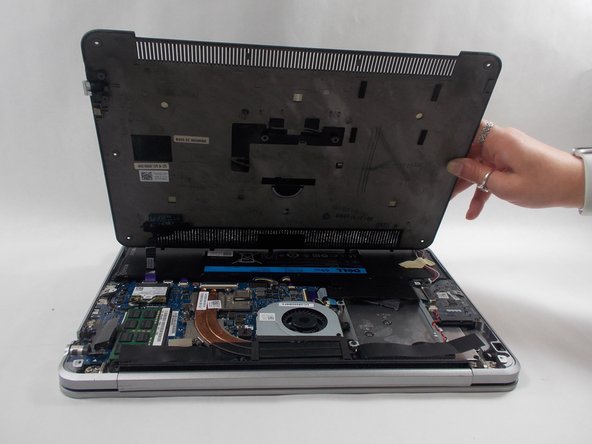
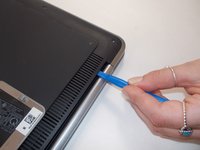
      • Use an opening tool to pop out the back panel.

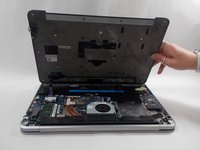
      • Once unhinged, the panel will open away from you.

      • The back panel will still be attached by a ribbon cable. Be cautious when opening the panel to ensure the ribbon stays intact.

      crwdns2952109:0crwdne2952109:0

      crwdns2917038:0crwdne2917038:0

    4. Dell XPS 14 RAM Replacement: crwdns2935265:04crwdnd2935265:01crwdnd2935265:03crwdne2935265:0 Dell XPS 14 RAM Replacement: crwdns2935265:04crwdnd2935265:02crwdnd2935265:03crwdne2935265:0 Dell XPS 14 RAM Replacement: crwdns2935265:04crwdnd2935265:03crwdnd2935265:03crwdne2935265:0
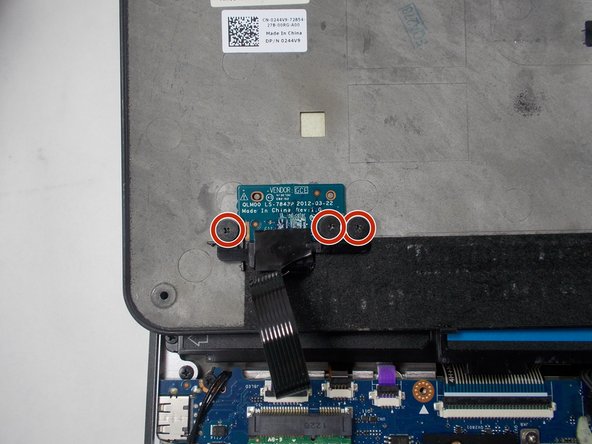
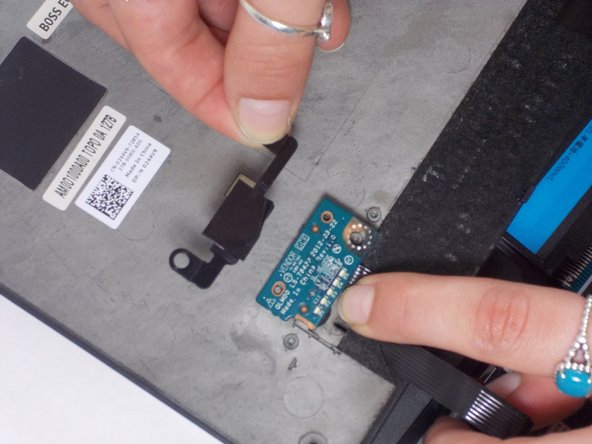
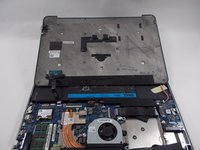
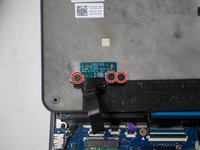
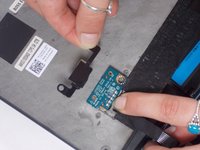
      • Flip over the back panel so that the interior of the panel is facing up.

      • Remove three 2 mm screws that are connected to the vendor GCE disk on the bottom left corner of the back panel using a Phillips #0 screwdriver.

      • Remove the black plastic cover that holds the disk in place.

      • Remove the back panel.

      • The GCE disk should still be connected to the computer via a purple ribbon cable.

      crwdns2952109:0crwdne2952109:0

      crwdns2917038:0crwdne2917038:0

    1. Dell XPS 14 RAM Replacement, Speaker: crwdns2935265:05crwdnd2935265:01crwdnd2935265:02crwdne2935265:0 Dell XPS 14 RAM Replacement, Speaker: crwdns2935265:05crwdnd2935265:02crwdnd2935265:02crwdne2935265:0
      • Remove four 2 mm screws that are connected to the speaker using a Phillips #0 screwdriver.

      crwdns2952109:0crwdne2952109:0

      crwdns2917038:0crwdne2917038:0

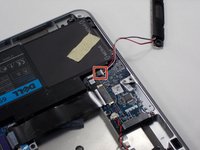
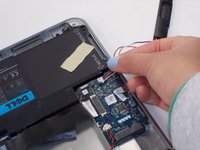
    2. Dell XPS 14 RAM Replacement: crwdns2935265:06crwdnd2935265:01crwdnd2935265:02crwdne2935265:0 Dell XPS 14 RAM Replacement: crwdns2935265:06crwdnd2935265:02crwdnd2935265:02crwdne2935265:0
      • Remove the speaker from its original location so the wire connector is visible.

      • Unplug the red and white cable plug by pulling out the white end tag.

      • The speaker is now fully removed.

      crwdns2952109:0crwdne2952109:0

      crwdns2917038:0crwdne2917038:0

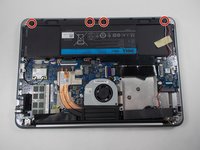
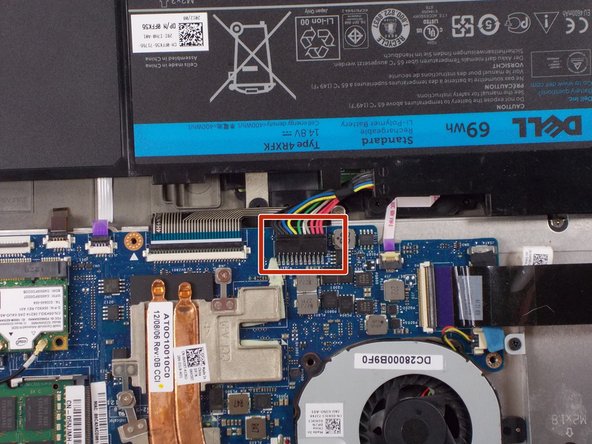
    1. Dell XPS 14 RAM Replacement, Battery: crwdns2935265:07crwdnd2935265:01crwdnd2935265:01crwdne2935265:0
      • Make sure to ground yourself before removing the battery.

      • Remove the four 6 mm screws from the sides of the battery using a T5 Torx screwdriver.

      • Remove the two 3 mm screws from the top of the battery using a Phillips #0 screwdriver.

      crwdns2952109:0crwdne2952109:0

      crwdns2917038:0crwdne2917038:0

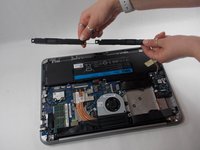
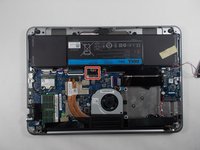
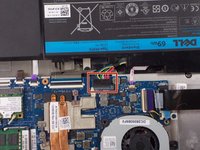
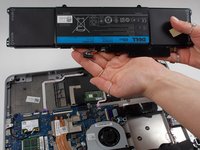
    2. Dell XPS 14 RAM Replacement: crwdns2935265:08crwdnd2935265:01crwdnd2935265:03crwdne2935265:0 Dell XPS 14 RAM Replacement: crwdns2935265:08crwdnd2935265:02crwdnd2935265:03crwdne2935265:0 Dell XPS 14 RAM Replacement: crwdns2935265:08crwdnd2935265:03crwdnd2935265:03crwdne2935265:0
      • Detach the battery connector from the motherboard using two thumbs to pop it out.

      • Remove the battery from the laptop.

      crwdns2952109:0crwdne2952109:0

      crwdns2917038:0crwdne2917038:0

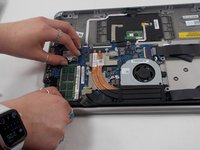
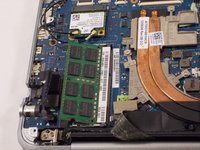
    1. Dell XPS 14 RAM Replacement, RAM: crwdns2935265:09crwdnd2935265:01crwdnd2935265:03crwdne2935265:0 Dell XPS 14 RAM Replacement, RAM: crwdns2935265:09crwdnd2935265:02crwdnd2935265:03crwdne2935265:0 Dell XPS 14 RAM Replacement, RAM: crwdns2935265:09crwdnd2935265:03crwdnd2935265:03crwdne2935265:0
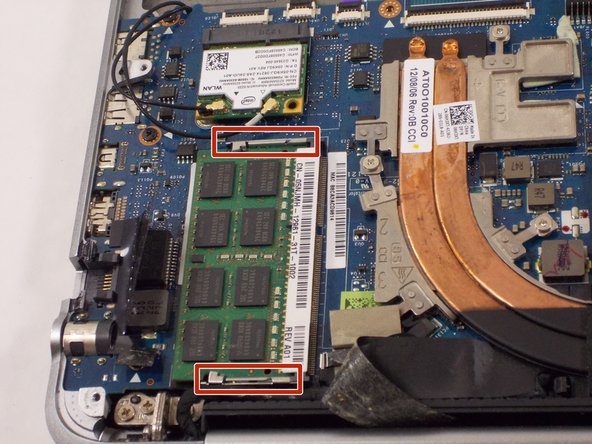
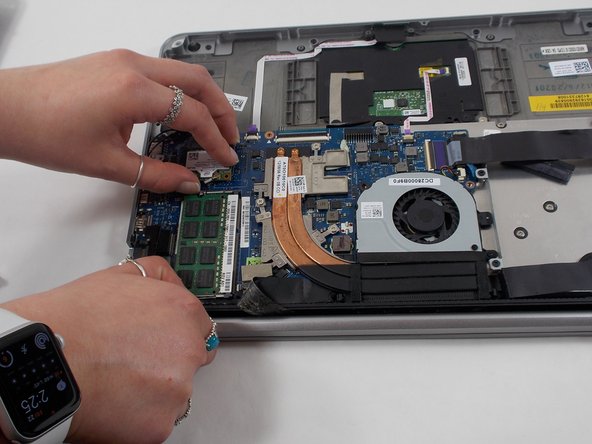
      • Remove any electrical tape that may be covering or overlapping the RAM cartridge.

      • Push the two metal latches on either side of the RAM outward.

      • The cartridge will pop out of the laptop.

      crwdns2952109:0crwdne2952109:0

      crwdns2917038:0crwdne2917038:0

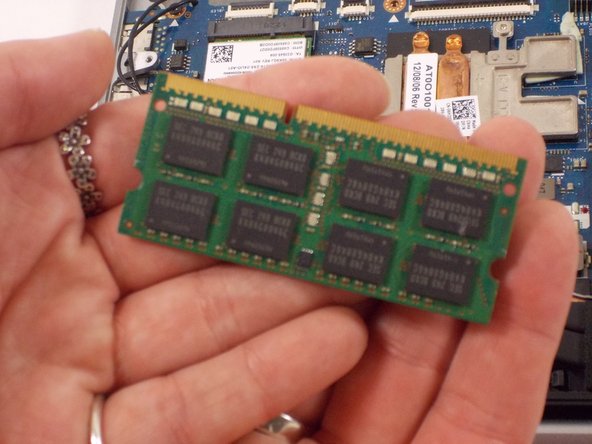
    2. Dell XPS 14 RAM Replacement: crwdns2935265:010crwdnd2935265:01crwdnd2935265:02crwdne2935265:0 Dell XPS 14 RAM Replacement: crwdns2935265:010crwdnd2935265:02crwdnd2935265:02crwdne2935265:0
      • Slide the RAM cartridge out of its slot.

      crwdns2952109:0crwdne2952109:0

      crwdns2917038:0crwdne2917038:0

crwdns2915888:0crwdne2915888:0

To reassemble your device, follow these instructions in reverse order.

crwdns2935221:0crwdne2935221:0

Gabriella Monico

crwdns2935283:003/23/22crwdne2935283:0

457 crwdns2915208:0crwdne2915208:0

crwdns2935297:05crwdne2935297:0

crwdns2935287:0crwdne2935287:0

UMass Dartmouth, Team 1-3, Botvin Spring 2022 crwdns2935289:0UMass Dartmouth, Team 1-3, Botvin Spring 2022crwdne2935289:0

UMASSD-BOTVIN-S22S1G3

crwdns2931471:03crwdne2931471:0

crwdns2935297:060crwdne2935297:0

crwdns2947412:00crwdne2947412:0

crwdns2917038:0crwdne2917038:0

crwdns2936625:0crwdne2936625:0:

crwdns2936751:024crwdne2936751:0 0

crwdns2936753:07crwdne2936753:0 10

crwdns2936753:030crwdne2936753:0 33

crwdns2942667:0crwdne2942667:0 764