crwdns2933423:0crwdne2933423:0
crwdns2947577:0crwdnd2947577:0crwdne2947577:0

Dell Inspiron B130 Screen Replacement

crwdns2942213:0crwdne2942213:0

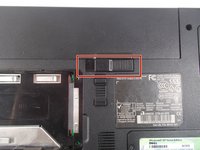
  1. Dell Inspiron B130 Screen Replacement, Battery: crwdns2935265:01crwdnd2935265:01crwdnd2935265:03crwdne2935265:0 Dell Inspiron B130 Screen Replacement, Battery: crwdns2935265:01crwdnd2935265:02crwdnd2935265:03crwdne2935265:0 Dell Inspiron B130 Screen Replacement, Battery: crwdns2935265:01crwdnd2935265:03crwdnd2935265:03crwdne2935265:0
    • First, make sure your computer is turned off.

    • Remove the battery by flipping the two switches under the battery and pulling it out

    crwdns2952109:0crwdne2952109:0

    crwdns2917038:0crwdne2917038:0

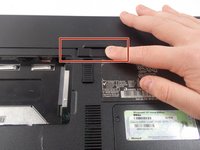
  2. Dell Inspiron B130 Screen Replacement: crwdns2935265:02crwdnd2935265:01crwdnd2935265:03crwdne2935265:0 Dell Inspiron B130 Screen Replacement: crwdns2935265:02crwdnd2935265:02crwdnd2935265:03crwdne2935265:0 Dell Inspiron B130 Screen Replacement: crwdns2935265:02crwdnd2935265:03crwdnd2935265:03crwdne2935265:0
    • Push the tab from the battery, downwards to unlock the battery.

    • The tab should be in the position next to the unlocked indicator.

    crwdns2952109:0crwdne2952109:0

    crwdns2917038:0crwdne2917038:0

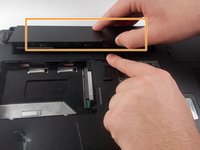
  3. Dell Inspiron B130 Screen Replacement: crwdns2935265:03crwdnd2935265:01crwdnd2935265:03crwdne2935265:0 Dell Inspiron B130 Screen Replacement: crwdns2935265:03crwdnd2935265:02crwdnd2935265:03crwdne2935265:0 Dell Inspiron B130 Screen Replacement: crwdns2935265:03crwdnd2935265:03crwdnd2935265:03crwdne2935265:0
    • Now, push the other tab (the one right under the battery) from right to left.

    • Now the battery will be loose; lift the battery up and out of the computer.

    crwdns2952109:0crwdne2952109:0

    crwdns2917038:0crwdne2917038:0

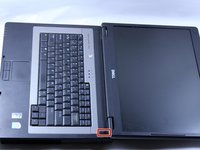
  4. Dell Inspiron B130 Screen Replacement, Keyboard: crwdns2935265:04crwdnd2935265:01crwdnd2935265:01crwdne2935265:0
    • Put down the computer and open up the screen.

    • There is a long piece of plastic underneath the screen that you will have to remove.

    crwdns2952109:0crwdne2952109:0

    crwdns2917038:0crwdne2917038:0

  5. Dell Inspiron B130 Screen Replacement: crwdns2935265:05crwdnd2935265:01crwdnd2935265:03crwdne2935265:0 Dell Inspiron B130 Screen Replacement: crwdns2935265:05crwdnd2935265:02crwdnd2935265:03crwdne2935265:0 Dell Inspiron B130 Screen Replacement: crwdns2935265:05crwdnd2935265:03crwdnd2935265:03crwdne2935265:0
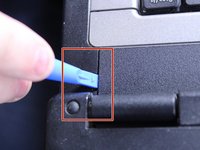
    • When you pry the plastic plate off, be careful and pry gently so you do not crack the plastic.

    • Insert the plastic opening tool into the little slot.

    • Lift up gently and remove the plastic cover.

    crwdns2952109:0crwdne2952109:0

    crwdns2917038:0crwdne2917038:0

  6. Dell Inspiron B130 Screen Replacement: crwdns2935265:06crwdnd2935265:01crwdnd2935265:01crwdne2935265:0
    • Remove the two 4mm screws at the top of the keyboard.

    • The keyboard is now loose but don't pull it out just yet. It is still connected underneath. Be gentle when lifting keyboard so you do not damage this connection.

    crwdns2952109:0crwdne2952109:0

    crwdns2917038:0crwdne2917038:0

  7. Dell Inspiron B130 Screen Replacement: crwdns2935265:07crwdnd2935265:01crwdnd2935265:02crwdne2935265:0 Dell Inspiron B130 Screen Replacement: crwdns2935265:07crwdnd2935265:02crwdnd2935265:02crwdne2935265:0
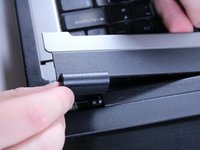
    • Lift keyboard up slightly and you will see the keyboard connection.

    • This black tab has to be lifted up to remove the keyboard.

    • Put your finger underneath the tab and pull back gently as indicated.

    • You can now remove the keyboard.

    crwdns2952109:0crwdne2952109:0

    crwdns2917038:0crwdne2917038:0

  8. Dell Inspiron B130 Screen Replacement, Screen: crwdns2935265:08crwdnd2935265:01crwdnd2935265:02crwdne2935265:0 Dell Inspiron B130 Screen Replacement, Screen: crwdns2935265:08crwdnd2935265:02crwdnd2935265:02crwdne2935265:0
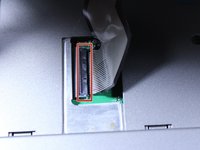
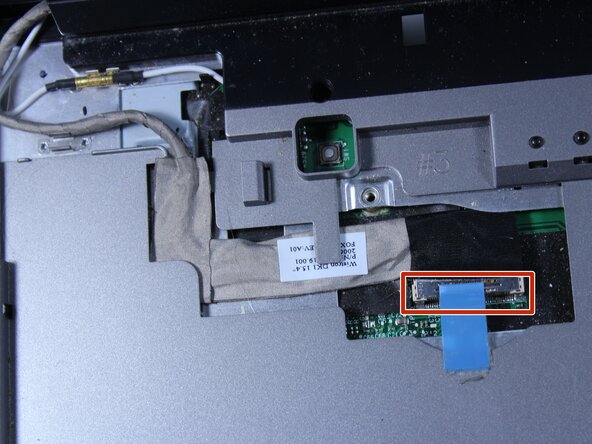
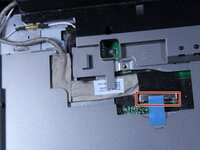
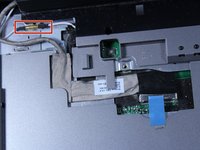
    • Detach the blue display connector.

    crwdns2952109:0crwdne2952109:0

    crwdns2917038:0crwdne2917038:0

  9. Dell Inspiron B130 Screen Replacement: crwdns2935265:09crwdnd2935265:01crwdnd2935265:02crwdne2935265:0 Dell Inspiron B130 Screen Replacement: crwdns2935265:09crwdnd2935265:02crwdnd2935265:02crwdne2935265:0
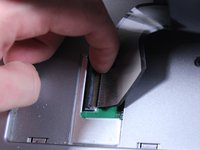
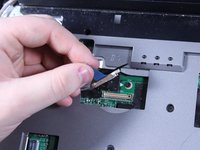
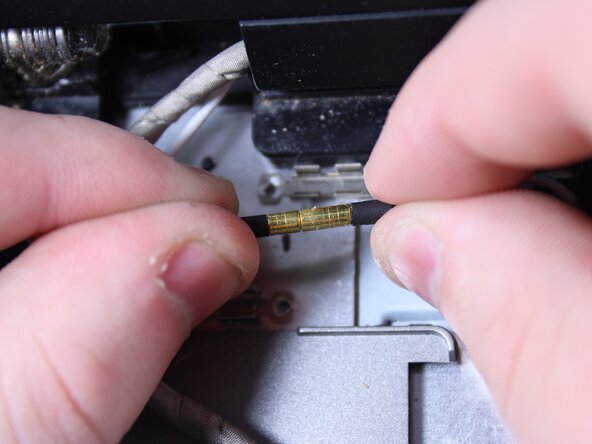
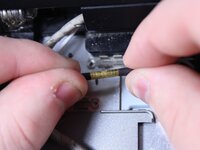
    • Detach the connector by pulling the two ends straight apart.

    • Avoid twisting or pulling at an angle to prevent damage.

    crwdns2952109:0crwdne2952109:0

    crwdns2917038:0crwdne2917038:0

  10. Dell Inspiron B130 Screen Replacement: crwdns2935265:010crwdnd2935265:01crwdnd2935265:01crwdne2935265:0
    • Use a Phillips #1 screwdriver to remove two 6 mm screws.

    crwdns2952109:0crwdne2952109:0

    crwdns2917038:0crwdne2917038:0

  11. Dell Inspiron B130 Screen Replacement: crwdns2935265:011crwdnd2935265:01crwdnd2935265:02crwdne2935265:0 Dell Inspiron B130 Screen Replacement: crwdns2935265:011crwdnd2935265:02crwdnd2935265:02crwdne2935265:0
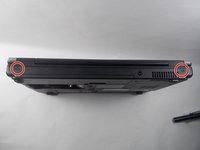
    • Close the computer and flip it over so that the back is facing up.

    • Remove the two 6mm screws that are behind each of the screen's pivot points using a Phillips #1 screwdriver.

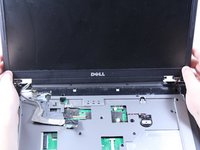
    • Open up the screen and now it can be lifted up and off of the computer.

    crwdns2952109:0crwdne2952109:0

    crwdns2917038:0crwdne2917038:0

crwdns2915888:0crwdne2915888:0

To reassemble your device, follow these instructions in reverse order.

crwdns2935221:0crwdne2935221:0

Patrick McNeil

crwdns2935283:010/19/16crwdne2935283:0

955 crwdns2915208:0crwdne2915208:0

crwdns2935297:08crwdne2935297:0

crwdns2935287:0crwdne2935287:0

UMass Dartmouth, Team 1-8, Catania Fall 2016 crwdns2935289:0UMass Dartmouth, Team 1-8, Catania Fall 2016crwdne2935289:0

UMASSD-CATANIA-F16S1G8

crwdns2931471:03crwdne2931471:0

crwdns2935297:09crwdne2935297:0

crwdns2947412:00crwdne2947412:0

crwdns2917038:0crwdne2917038:0

crwdns2936625:0crwdne2936625:0:

crwdns2936751:024crwdne2936751:0 1

crwdns2936753:07crwdne2936753:0 8

crwdns2936753:030crwdne2936753:0 26

crwdns2942667:0crwdne2942667:0 645