crwdns2933423:0crwdne2933423:0
crwdns2947577:0crwdnd2947577:0crwdne2947577:0

Dell Inspiron 700m RAM Replacement

crwdns2869540:0crwdne2869540:0: 4.3K

crwdns2959988:0crwdne2959988:0

crwdns2959990:0crwdne2959990:0
2
crwdns2959992:0crwdne2959992:0
13
crwdns2959994:0crwdne2959994:0
86
crwdns2959996:0crwdne2959996:0
4,282
crwdns2955950:0crwdne2955950:0: 0

crwdns2959998:0crwdne2959998:0

crwdns2960000:0crwdne2960000:0
crwdns2959984:0crwdne2959984:0: 4

crwdns2959974:04crwdne2959974:0

crwdns2959986:0crwdne2959986:0: 1

crwdns2959980:01crwdne2959980:0

crwdns2955944:0crwdne2955944:0: crwdns2931273:0crwdne2931273:0
crwdns2955970:0crwdne2955970:0: crwdns2937801:0crwdne2937801:0
crwdns2944444:0crwdne2944444:0

crwdns2944446:0crwdne2944446:0

Dell Inspiron 700m RAM Replacement

crwdns2915892:0crwdne2915892:0

crwdns2959928:0crwdne2959928:0 ↓

The 700m has room for two sticks of RAM, but one is hidden under the keyboard. Use this guide to replace both.

crwdns2959930:0crwdne2959930:0

crwdns2943215:0crwdne2943215:0

    1. Dell Inspiron 700m RAM Replacement, Battery: crwdns2935265:01crwdnd2935265:01crwdnd2935265:01crwdne2935265:0
      • Before you begin, make sure the 700m is powered off.

      • Unplug the power cable.

      • Flip the 700m over and remove the battery.

      • Slide the battery release switch toward the center of the 700m, and then pull the battery free from the back.

      crwdns2952109:0crwdne2952109:0

      crwdns2917038:0crwdne2917038:0

    2. Dell Inspiron 700m RAM Replacement, Outer RAM Cover: crwdns2935265:02crwdnd2935265:01crwdnd2935265:01crwdne2935265:0
      • Remove the two Phillips screws securing the RAM cover.

      • Remove the RAM cover and set it aside.

      crwdns2952109:0crwdne2952109:0

      crwdns2917038:0crwdne2917038:0

    3. Dell Inspiron 700m RAM Replacement, RAM Module #1: crwdns2935265:03crwdnd2935265:01crwdnd2935265:03crwdne2935265:0 Dell Inspiron 700m RAM Replacement, RAM Module #1: crwdns2935265:03crwdnd2935265:02crwdnd2935265:03crwdne2935265:0 Dell Inspiron 700m RAM Replacement, RAM Module #1: crwdns2935265:03crwdnd2935265:03crwdnd2935265:03crwdne2935265:0
      • Two clips secure the RAM module in place, one on each side. Using your fingers, spread the clips away from the RAM module.

      • When released, the RAM module will pop up at a slight angle.

      • Lift the RAM module to an angle of about 30 degrees and slide it out.

      • When handling the RAM module, touch only the outside edges. Take care not to touch the gold-colored contact points along the bottom edge.

      • To install a new RAM module, slide it in place at about the same angle until it is snug, and then swing it downward until the two clips snap into place.

      crwdns2952109:0crwdne2952109:0

      crwdns2917038:0crwdne2917038:0

    4. Dell Inspiron 700m RAM Replacement: crwdns2935265:04crwdnd2935265:01crwdnd2935265:03crwdne2935265:0 Dell Inspiron 700m RAM Replacement: crwdns2935265:04crwdnd2935265:02crwdnd2935265:03crwdne2935265:0 Dell Inspiron 700m RAM Replacement: crwdns2935265:04crwdnd2935265:03crwdnd2935265:03crwdne2935265:0
      • Flip the 700m over and swing the screen all the way open until it lays flat.

      • Beginning from the left side, use the flat end of a spudger to gently pry up the plastic trim that runs along the top edge of the keyboard. Remove the trim.

      crwdns2952109:0crwdne2952109:0

      crwdns2917038:0crwdne2917038:0

    5. Dell Inspiron 700m RAM Replacement, Keyboard: crwdns2935265:05crwdnd2935265:01crwdnd2935265:01crwdne2935265:0
      • Remove the two Phillips screws securing the keyboard.

      crwdns2952109:0crwdne2952109:0

      crwdns2917038:0crwdne2917038:0

    6. Dell Inspiron 700m RAM Replacement: crwdns2935265:06crwdnd2935265:01crwdnd2935265:01crwdne2935265:0
      • Tilt the top of the keyboard up at an angle, and gently push the keyboard toward the back of the 700m, freeing the tabs along the bottom.

      • Do not push very hard, or you may damage the keyboard ribbon cable.

      crwdns2952109:0crwdne2952109:0

      crwdns2917038:0crwdne2917038:0

    7. Dell Inspiron 700m RAM Replacement: crwdns2935265:07crwdnd2935265:01crwdnd2935265:03crwdne2935265:0 Dell Inspiron 700m RAM Replacement: crwdns2935265:07crwdnd2935265:02crwdnd2935265:03crwdne2935265:0 Dell Inspiron 700m RAM Replacement: crwdns2935265:07crwdnd2935265:03crwdnd2935265:03crwdne2935265:0
      • Tilt the bottom of the keyboard up at an angle.

      • Use the pointed end of a spudger to disconnect the keyboard ribbon cable by pushing open the clips on either side.

      • Remove the keyboard and set it aside.

      crwdns2952109:0crwdne2952109:0

      crwdns2917038:0crwdne2917038:0

    8. Dell Inspiron 700m RAM Replacement, Inner RAM Cover: crwdns2935265:08crwdnd2935265:01crwdnd2935265:02crwdne2935265:0 Dell Inspiron 700m RAM Replacement, Inner RAM Cover: crwdns2935265:08crwdnd2935265:02crwdnd2935265:02crwdne2935265:0
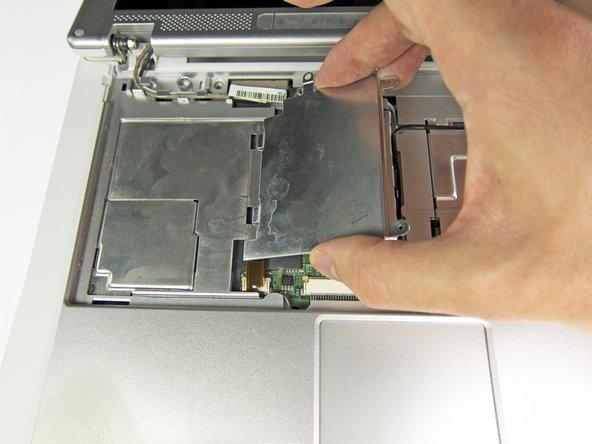
      • Remove the two Phillips screws securing the inner RAM cover.

      • Tilt the right side of the RAM cover up at an angle and pull it free.

      crwdns2952109:0crwdne2952109:0

      crwdns2917038:0crwdne2917038:0

    9. Dell Inspiron 700m RAM Replacement, RAM Module #2: crwdns2935265:09crwdnd2935265:01crwdnd2935265:02crwdne2935265:0 Dell Inspiron 700m RAM Replacement, RAM Module #2: crwdns2935265:09crwdnd2935265:02crwdnd2935265:02crwdne2935265:0
      • Two clips secure the RAM module in place, one on each side. Using your fingers, spread the clips away from the RAM module.

      • When released, the RAM module will pop up at a slight angle.

      • Lift the RAM module to an angle of about 30 degrees and slide it out.

      • When handling the RAM module, touch only the outside edges. Take care not to touch the gold-colored contact points along the bottom edge.

      • To install a new RAM module, slide it in place at about the same angle until it is snug, and then swing it downward until the two clips snap into place.

      crwdns2952109:0crwdne2952109:0

      crwdns2917038:0crwdne2917038:0

crwdns2915888:0crwdne2915888:0

To reassemble your device, follow these instructions in reverse order.

crwdns2935221:0crwdne2935221:0

crwdns2935229:04crwdne2935229:0

Jeff Suovanen

crwdns2935283:008/06/13crwdne2935283:0

455,346 crwdns2915208:0crwdne2915208:0

crwdns2935297:0259crwdne2935297:0

crwdns2935287:0crwdne2935287:0

iFixit crwdns2935289:0iFixitcrwdne2935289:0

Staff

crwdns2931471:0121crwdne2931471:0

crwdns2935297:072,931crwdne2935297:0

crwdns2947412:00crwdne2947412:0

crwdns2917038:0crwdne2917038:0

crwdns2936625:0crwdne2936625:0:

crwdns2936751:024crwdne2936751:0 2

crwdns2936753:07crwdne2936753:0 13

crwdns2936753:030crwdne2936753:0 86

crwdns2959996:0crwdne2959996:0 4,282