crwdns2933423:0crwdne2933423:0
crwdns2947577:0crwdnd2947577:0crwdne2947577:0

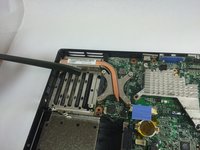
Dell Inspiron 6000 Fan Replacement

crwdns2942213:0crwdne2942213:0

    1. Dell Inspiron 6000 Fan Replacement, Battery: crwdns2935265:01crwdnd2935265:01crwdnd2935265:01crwdne2935265:0
      • To prevent injury, make sure the laptop is unplugged before removing the battery.

      • Flip the laptop over, bottom-side up.

      crwdns2952109:0crwdne2952109:0

      crwdns2917038:0crwdne2917038:0

    2. Dell Inspiron 6000 Fan Replacement: crwdns2935265:02crwdnd2935265:01crwdnd2935265:01crwdne2935265:0
      • Push the switch next to the battery.

      • At the same time, lift the battery away from the laptop.

      crwdns2952109:0crwdne2952109:0

      crwdns2917038:0crwdne2917038:0

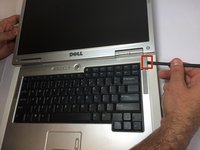
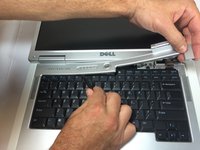
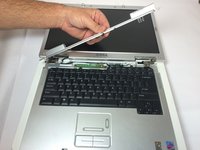
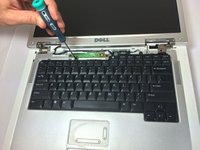
    1. Dell Inspiron 6000 Fan Replacement, Keyboard: crwdns2935265:03crwdnd2935265:01crwdnd2935265:03crwdne2935265:0 Dell Inspiron 6000 Fan Replacement, Keyboard: crwdns2935265:03crwdnd2935265:02crwdnd2935265:03crwdne2935265:0 Dell Inspiron 6000 Fan Replacement, Keyboard: crwdns2935265:03crwdnd2935265:03crwdnd2935265:03crwdne2935265:0
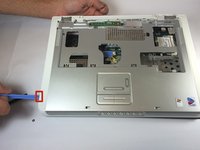
      • Place the laptop on flat surface.

      • Carefully open the laptop at far as it will go so that the back of screen is touching the flat surface.

      • Carefully take a spudger and separate part of the cover at the red circle.

      crwdns2952109:0crwdne2952109:0

      crwdns2917038:0crwdne2917038:0

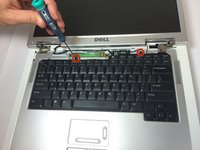
    2. Dell Inspiron 6000 Fan Replacement: crwdns2935265:04crwdnd2935265:01crwdnd2935265:02crwdne2935265:0 Dell Inspiron 6000 Fan Replacement: crwdns2935265:04crwdnd2935265:02crwdnd2935265:02crwdne2935265:0
      • Remove two 4 mm Philips #00 screws.

      crwdns2952109:0crwdne2952109:0

      crwdns2917038:0crwdne2917038:0

    3. Dell Inspiron 6000 Fan Replacement: crwdns2935265:05crwdnd2935265:01crwdnd2935265:01crwdne2935265:0
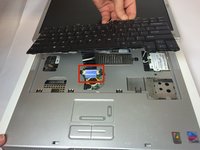
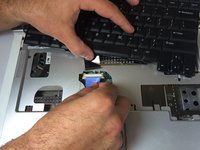
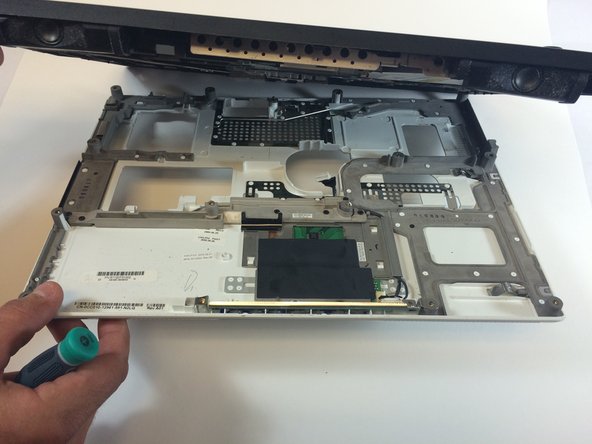
      • Gently lift the keyboard away from the laptop without harming the cord that is located at the bottom of the keyboard.

      crwdns2952109:0crwdne2952109:0

      crwdns2917038:0crwdne2917038:0

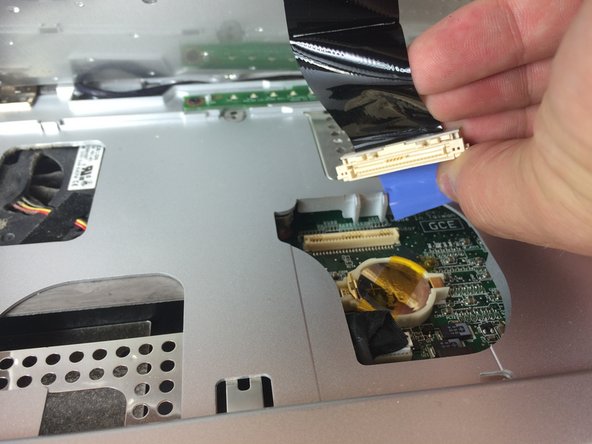
    4. Dell Inspiron 6000 Fan Replacement: crwdns2935265:06crwdnd2935265:01crwdnd2935265:03crwdne2935265:0 Dell Inspiron 6000 Fan Replacement: crwdns2935265:06crwdnd2935265:02crwdnd2935265:03crwdne2935265:0 Dell Inspiron 6000 Fan Replacement: crwdns2935265:06crwdnd2935265:03crwdnd2935265:03crwdne2935265:0
      • Gently pull the blue tab up until it comes away from computer.

      crwdns2952109:0crwdne2952109:0

      crwdns2917038:0crwdne2917038:0

    1. Dell Inspiron 6000 Fan Replacement, Fan: crwdns2935265:07crwdnd2935265:01crwdnd2935265:01crwdne2935265:0
      • Unscrew the 4 mm Phillips #00 screw.

      • The screw will remain attached to the cord when fully removed.

      crwdns2952109:0crwdne2952109:0

      crwdns2917038:0crwdne2917038:0

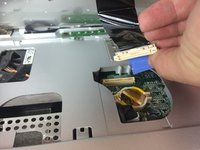
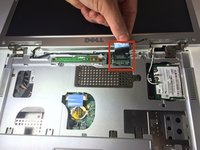
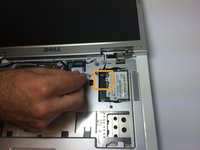
    2. Dell Inspiron 6000 Fan Replacement: crwdns2935265:08crwdnd2935265:01crwdnd2935265:02crwdne2935265:0 Dell Inspiron 6000 Fan Replacement: crwdns2935265:08crwdnd2935265:02crwdnd2935265:02crwdne2935265:0
      • Gently pull the blue tab to separate the screen connection from the laptop.

      • Gently pull and disconnect the white and black cords from the power source.

      crwdns2952109:0crwdne2952109:0

      crwdns2917038:0crwdne2917038:0

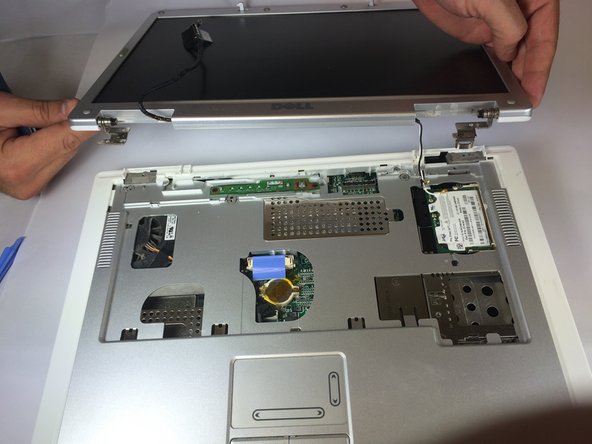
    3. Dell Inspiron 6000 Fan Replacement: crwdns2935265:09crwdnd2935265:01crwdnd2935265:02crwdne2935265:0 Dell Inspiron 6000 Fan Replacement: crwdns2935265:09crwdnd2935265:02crwdnd2935265:02crwdne2935265:0
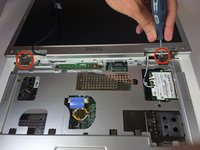
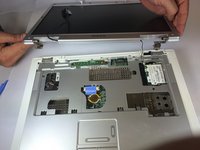
      • Remove four 4mm #00 Philips screws from the screen hinges.

      • Lift the screen away from the laptop.

      crwdns2952109:0crwdne2952109:0

      crwdns2917038:0crwdne2917038:0

    4. Dell Inspiron 6000 Fan Replacement: crwdns2935265:010crwdnd2935265:01crwdnd2935265:02crwdne2935265:0 Dell Inspiron 6000 Fan Replacement: crwdns2935265:010crwdnd2935265:02crwdnd2935265:02crwdne2935265:0
      • Remove two 4 mm Philips #00 screws that connect top of laptop to base..

      crwdns2952109:0crwdne2952109:0

      crwdns2917038:0crwdne2917038:0

    5. Dell Inspiron 6000 Fan Replacement: crwdns2935265:011crwdnd2935265:01crwdnd2935265:01crwdne2935265:0
      • Flip laptop the over and remove thirteen 6mm Philips #00 screws.

      crwdns2952109:0crwdne2952109:0

      crwdns2917038:0crwdne2917038:0

    6. Dell Inspiron 6000 Fan Replacement: crwdns2935265:012crwdnd2935265:01crwdnd2935265:02crwdne2935265:0 Dell Inspiron 6000 Fan Replacement: crwdns2935265:012crwdnd2935265:02crwdnd2935265:02crwdne2935265:0
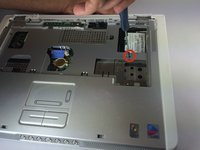
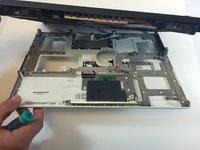
      • Insert the plastic opening tool in between the back and front plates of the laptop

      crwdns2952109:0crwdne2952109:0

      crwdns2917038:0crwdne2917038:0

    7. Dell Inspiron 6000 Fan Replacement: crwdns2935265:013crwdnd2935265:01crwdnd2935265:01crwdne2935265:0
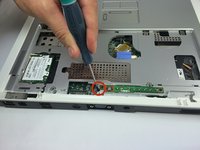
      • Remove two 4 mm Philips #00 screws.

      crwdns2952109:0crwdne2952109:0

      crwdns2917038:0crwdne2917038:0

    8. Dell Inspiron 6000 Fan Replacement: crwdns2935265:014crwdnd2935265:01crwdnd2935265:01crwdne2935265:0
      • Remove the fan power cord

      crwdns2952109:0crwdne2952109:0

      crwdns2917038:0crwdne2917038:0

    9. Dell Inspiron 6000 Fan Replacement: crwdns2935265:015crwdnd2935265:01crwdnd2935265:02crwdne2935265:0 Dell Inspiron 6000 Fan Replacement: crwdns2935265:015crwdnd2935265:02crwdnd2935265:02crwdne2935265:0
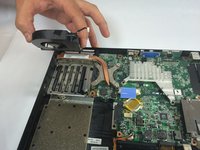
      • Using your hand, lift the fan from the laptop.

      crwdns2952109:0crwdne2952109:0

      crwdns2917038:0crwdne2917038:0

crwdns2915888:0crwdne2915888:0

To reassemble your device, follow these instructions in reverse order.

crwdns2935221:0crwdne2935221:0

crwdns2935229:05crwdne2935229:0

Jacob DeWar

crwdns2935283:009/23/14crwdne2935283:0

563 crwdns2915208:0crwdne2915208:0

crwdns2935297:03crwdne2935297:0

crwdns2935287:0crwdne2935287:0

USF Tampa, Team 11-1, Blackwell Fall 2014 crwdns2935289:0USF Tampa, Team 11-1, Blackwell Fall 2014crwdne2935289:0

USFT-BLACKWELL-F14S11G1

crwdns2931471:05crwdne2931471:0

crwdns2935297:084crwdne2935297:0

crwdns2947412:00crwdne2947412:0

crwdns2917038:0crwdne2917038:0

crwdns2936625:0crwdne2936625:0:

crwdns2936751:024crwdne2936751:0 0

crwdns2936753:07crwdne2936753:0 5

crwdns2936753:030crwdne2936753:0 31

crwdns2942667:0crwdne2942667:0 2,780