crwdns2933423:0crwdne2933423:0
crwdns2947577:0crwdnd2947577:0crwdne2947577:0

Dell Inspiron 1526 Screen Replacement

crwdns2942213:0crwdne2942213:0

    1. Dell Inspiron 1526 Screen Replacement, Battery: crwdns2935265:01crwdnd2935265:01crwdnd2935265:03crwdne2935265:0 Dell Inspiron 1526 Screen Replacement, Battery: crwdns2935265:01crwdnd2935265:02crwdnd2935265:03crwdne2935265:0 Dell Inspiron 1526 Screen Replacement, Battery: crwdns2935265:01crwdnd2935265:03crwdnd2935265:03crwdne2935265:0
      • Slide the unlock button to the left to release the battery.

      • Slide the battery away from the laptop to remove.

      • The unlock button is located on the bottom of the laptop.

      crwdns2952109:0crwdne2952109:0

      crwdns2917038:0crwdne2917038:0

    1. Dell Inspiron 1526 Screen Replacement, Keyboard: crwdns2935265:02crwdnd2935265:01crwdnd2935265:01crwdne2935265:0
      • Loosen the two 3.5mm Phillips #1 screws in the battery bay.

      crwdns2952109:0crwdne2952109:0

      crwdns2917038:0crwdne2917038:0

    2. Dell Inspiron 1526 Screen Replacement: crwdns2935265:03crwdnd2935265:01crwdnd2935265:01crwdne2935265:0
      • Flip the laptop over.

      • Lift the control cover by prying the right side of the cover with an iFixit opening tool.

      crwdns2952109:0crwdne2952109:0

      crwdns2917038:0crwdne2917038:0

    3. Dell Inspiron 1526 Screen Replacement: crwdns2935265:04crwdnd2935265:01crwdnd2935265:01crwdne2935265:0
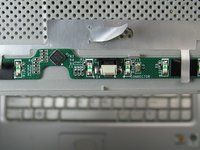
      • Carefully lift the control cover up and forward to reveal a single ribbon cable.

      crwdns2952109:0crwdne2952109:0

      crwdns2917038:0crwdne2917038:0

    4. Dell Inspiron 1526 Screen Replacement: crwdns2935265:05crwdnd2935265:01crwdnd2935265:01crwdne2935265:0
      crwdns2935267:0crwdne2935267:0
      Tweezers
      $4.99
      • Use tweezers to squeeze the tabs on the connector and remove the ribbon cable.

      crwdns2952109:0crwdne2952109:0

      crwdns2917038:0crwdne2917038:0

    5. Dell Inspiron 1526 Screen Replacement: crwdns2935265:06crwdnd2935265:01crwdnd2935265:02crwdne2935265:0 Dell Inspiron 1526 Screen Replacement: crwdns2935265:06crwdnd2935265:02crwdnd2935265:02crwdne2935265:0
      • Remove the control cover.

      crwdns2952109:0crwdne2952109:0

      crwdns2917038:0crwdne2917038:0

    6. Dell Inspiron 1526 Screen Replacement: crwdns2935265:07crwdnd2935265:01crwdnd2935265:01crwdne2935265:0
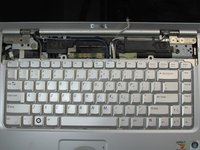
      • Remove the two 3mm Phillips #1 screws at the top of the keyboard where the control cover was.

      crwdns2952109:0crwdne2952109:0

      crwdns2917038:0crwdne2917038:0

    7. Dell Inspiron 1526 Screen Replacement: crwdns2935265:08crwdnd2935265:01crwdnd2935265:01crwdne2935265:0
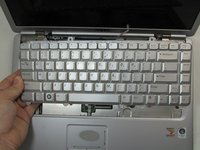
      • Lift the keyboard gently from the top, but do not remove completely.

      • Looking under the keyboard, towards the touch-pad in the center, lift up the black tab on the connector with tweezers for the keyboard ribbon cable.

      crwdns2952109:0crwdne2952109:0

      crwdns2917038:0crwdne2917038:0

    8. Dell Inspiron 1526 Screen Replacement: crwdns2935265:09crwdnd2935265:01crwdnd2935265:02crwdne2935265:0 Dell Inspiron 1526 Screen Replacement: crwdns2935265:09crwdnd2935265:02crwdnd2935265:02crwdne2935265:0
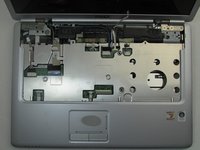
      • Remove the keyboard.

      crwdns2952109:0crwdne2952109:0

      crwdns2917038:0crwdne2917038:0

    1. Dell Inspiron 1526 Screen Replacement, Screen: crwdns2935265:010crwdnd2935265:01crwdnd2935265:02crwdne2935265:0 Dell Inspiron 1526 Screen Replacement, Screen: crwdns2935265:010crwdnd2935265:02crwdnd2935265:02crwdne2935265:0
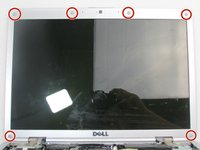
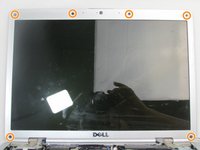
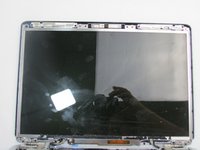
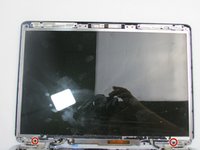
      • Remove the six plastic pads around the bezel using an iFixit opening pick.

      • Remove the six 3mm Phillips #0 screws under each pad.

      crwdns2952109:0crwdne2952109:0

      crwdns2917038:0crwdne2917038:0

    2. Dell Inspiron 1526 Screen Replacement: crwdns2935265:011crwdnd2935265:01crwdnd2935265:03crwdne2935265:0 Dell Inspiron 1526 Screen Replacement: crwdns2935265:011crwdnd2935265:02crwdnd2935265:03crwdne2935265:0 Dell Inspiron 1526 Screen Replacement: crwdns2935265:011crwdnd2935265:03crwdnd2935265:03crwdne2935265:0
      • Open the computer so that it rests flat on the table.

      • Separate the bezel from the black plastic frame using a spudger.

      • There are a dozen snaps around the perimeter of the bezel and there are two between the pivot joints of the laptop.

      crwdns2952109:0crwdne2952109:0

      crwdns2917038:0crwdne2917038:0

    3. Dell Inspiron 1526 Screen Replacement: crwdns2935265:012crwdnd2935265:01crwdnd2935265:02crwdne2935265:0 Dell Inspiron 1526 Screen Replacement: crwdns2935265:012crwdnd2935265:02crwdnd2935265:02crwdne2935265:0
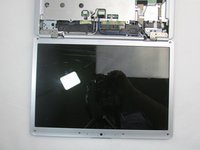
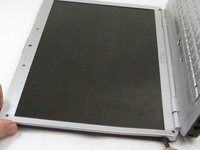
      • Remove the two 3mm Phillips #1 screws at the bottom of the display panel.

      • Lift the display slightly from the top, then pull outwards.

      • Flip the display panel around to the back.

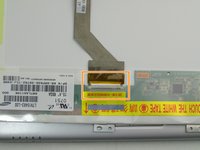
      • Disconnect the connector and remove the ribbon cable.

      crwdns2952109:0crwdne2952109:0

      crwdns2917038:0crwdne2917038:0

crwdns2915888:0crwdne2915888:0

To reassemble your device, follow these instructions in reverse order.

crwdns2935221:0crwdne2935221:0

Ahmed Alshamsi

crwdns2935283:009/17/19crwdne2935283:0

181 crwdns2915208:0crwdne2915208:0

crwdns2935297:02crwdne2935297:0

crwdns2935287:0crwdne2935287:0

Embry-Riddle Aeronautical University, Team S20-G3, Branham Fall 2019 crwdns2935289:0Embry-Riddle Aeronautical University, Team S20-G3, Branham Fall 2019crwdne2935289:0

ERAU-BRANHAM-F19S20G3

crwdns2931471:04crwdne2931471:0

crwdns2935297:060crwdne2935297:0

crwdns2947412:00crwdne2947412:0

crwdns2917038:0crwdne2917038:0

crwdns2936625:0crwdne2936625:0:

crwdns2936751:024crwdne2936751:0 1

crwdns2936753:07crwdne2936753:0 5

crwdns2936753:030crwdne2936753:0 24

crwdns2942667:0crwdne2942667:0 517