crwdns2933423:0crwdne2933423:0
crwdns2947577:0crwdnd2947577:0crwdne2947577:0

Chromebook Pixel (2013) Battery Replacement

crwdns2942213:0crwdne2942213:0

    1. Chromebook Pixel (2013) Battery Replacement, Remove the rubber pads: crwdns2935265:01crwdnd2935265:01crwdnd2935265:02crwdne2935265:0 Chromebook Pixel (2013) Battery Replacement, Remove the rubber pads: crwdns2935265:01crwdnd2935265:02crwdnd2935265:02crwdne2935265:0
      • Flip your Chromebook Pixel over onto its back

      • Using a flat edge screwdriver, gently pull up to remove the rubber pads from the laptop to reveal the screws

      crwdns2952109:0crwdne2952109:0

      crwdns2917038:0crwdne2917038:0

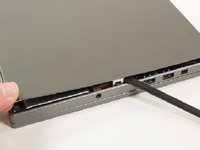
    2. Chromebook Pixel (2013) Battery Replacement, Removing the bottom panel: crwdns2935265:02crwdnd2935265:01crwdnd2935265:03crwdne2935265:0 Chromebook Pixel (2013) Battery Replacement, Removing the bottom panel: crwdns2935265:02crwdnd2935265:02crwdnd2935265:03crwdne2935265:0 Chromebook Pixel (2013) Battery Replacement, Removing the bottom panel: crwdns2935265:02crwdnd2935265:03crwdnd2935265:03crwdne2935265:0
      • Using a small Philips screwdriver, remove the four screws under the pads

      • Using a spudger (or another flat but slightly blunt object), gently pry the laptop open

      • You may find it helpful to start with a smaller (skinnier) head and work your way up to a larger size

      crwdns2952109:0crwdne2952109:0

      crwdns2917038:0crwdne2917038:0

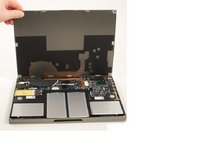
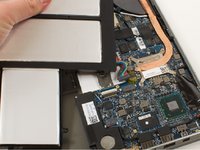
    3. Chromebook Pixel (2013) Battery Replacement, Pop it open: crwdns2935265:03crwdnd2935265:01crwdnd2935265:02crwdne2935265:0 Chromebook Pixel (2013) Battery Replacement, Pop it open: crwdns2935265:03crwdnd2935265:02crwdnd2935265:02crwdne2935265:0
      • Gently pull up from the front of the laptop and open it up like a clamshell

      crwdns2952109:0crwdne2952109:0

      crwdns2917038:0crwdne2917038:0

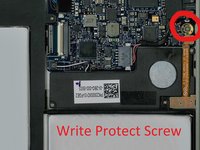
    4. Chromebook Pixel (2013) Battery Replacement, Remove the write protect screw (IF APPLICABLE): crwdns2935265:04crwdnd2935265:01crwdnd2935265:02crwdne2935265:0 Chromebook Pixel (2013) Battery Replacement, Remove the write protect screw (IF APPLICABLE): crwdns2935265:04crwdnd2935265:02crwdnd2935265:02crwdne2935265:0
      • Locate the write protect screw

      • Remove it and you can begin flashing your BIOS!

      crwdns2952109:0crwdne2952109:0

      crwdns2917038:0crwdne2917038:0

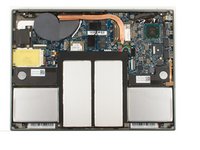
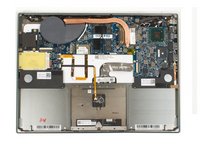
    1. Chromebook Pixel (2013) Battery Replacement, Remove the bottom cover: crwdns2935265:05crwdnd2935265:01crwdnd2935265:01crwdne2935265:0
      • You should have your Chromebook Pixel flipped over and the bottom cover removed at this point

      crwdns2952109:0crwdne2952109:0

      crwdns2917038:0crwdne2917038:0

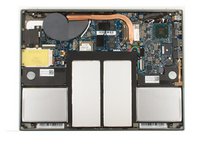
    2. Chromebook Pixel (2013) Battery Replacement, Release the battery: crwdns2935265:06crwdnd2935265:01crwdnd2935265:01crwdne2935265:0
      • Remove the screws holding the battery in place.

      crwdns2952109:0crwdne2952109:0

      crwdns2917038:0crwdne2917038:0

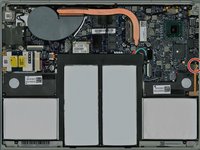
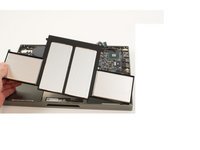
    3. Chromebook Pixel (2013) Battery Replacement, Unplug the battery: crwdns2935265:07crwdnd2935265:01crwdnd2935265:02crwdne2935265:0 Chromebook Pixel (2013) Battery Replacement, Unplug the battery: crwdns2935265:07crwdnd2935265:02crwdnd2935265:02crwdne2935265:0
      • Using a splunger or your finger and a gentle pull, unplug the battery from the Pixel logic board

      • Pull the battery toward you to remove it

      crwdns2952109:0crwdne2952109:0

      crwdns2917038:0crwdne2917038:0

    4. Chromebook Pixel (2013) Battery Replacement, Examine the new battery: crwdns2935265:08crwdnd2935265:01crwdnd2935265:01crwdne2935265:0
      • Make sure that the wattage and voltage matches the values of the old battery

      crwdns2952109:0crwdne2952109:0

      crwdns2917038:0crwdne2917038:0

    5. Chromebook Pixel (2013) Battery Replacement, Install the new battery: crwdns2935265:09crwdnd2935265:01crwdnd2935265:02crwdne2935265:0 Chromebook Pixel (2013) Battery Replacement, Install the new battery: crwdns2935265:09crwdnd2935265:02crwdnd2935265:02crwdne2935265:0
      • Follow these steps in reverse and turn on the Pixel.

      • If the old battery was failing, will have to reset the system time when you log back into Chrome OS or your installed Operating System

      crwdns2952109:0crwdne2952109:0

      crwdns2917038:0crwdne2917038:0

crwdns2915888:0crwdne2915888:0

To reassemble your device, follow these instructions in reverse order.

crwdns2935221:0crwdne2935221:0

crwdns2935229:010crwdne2935229:0

Kevin Fessler

crwdns2935283:004/16/16crwdne2935283:0

1 887 crwdns2915208:0crwdne2915208:0

crwdns2935297:04crwdne2935297:0

crwdns2947412:02crwdne2947412:0

You can now find these batteries on Amazon too- just search for the same part number GP-S22-000000-0100

riansanderson - crwdns2934203:0crwdne2934203:0 crwdns2950251:0crwdne2950251:0

Hello could someone help

Where would i get a replacement battery from ? having trouble locating one .

Thanks in advance nick

Nick Harrisson - crwdns2934203:0crwdne2934203:0 crwdns2950251:0crwdne2950251:0

crwdns2917038:0crwdne2917038:0

crwdns2936625:0crwdne2936625:0:

crwdns2936751:024crwdne2936751:0 12

crwdns2936753:07crwdne2936753:0 29

crwdns2936753:030crwdne2936753:0 82

crwdns2942667:0crwdne2942667:0 8,387