crwdns2933423:0crwdne2933423:0
crwdns2947577:0crwdnd2947577:0crwdne2947577:0

Canon PowerShot A75 LCD Screen Replacement

crwdns2942213:0crwdne2942213:0

  1. Canon PowerShot A75 LCD Screen Replacement, Batteries: crwdns2935265:01crwdnd2935265:01crwdnd2935265:01crwdne2935265:0
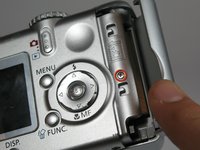
    • Turn the camera over and locate the "BATT OPEN" sliding switch.

    crwdns2952109:0crwdne2952109:0

    crwdns2917038:0crwdne2917038:0

  2. Canon PowerShot A75 LCD Screen Replacement: crwdns2935265:02crwdnd2935265:01crwdnd2935265:03crwdne2935265:0 Canon PowerShot A75 LCD Screen Replacement: crwdns2935265:02crwdnd2935265:02crwdnd2935265:03crwdne2935265:0 Canon PowerShot A75 LCD Screen Replacement: crwdns2935265:02crwdnd2935265:03crwdnd2935265:03crwdne2935265:0
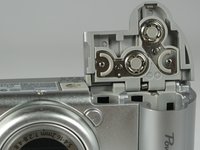
    • Slide the switch to the right.

    • The battery cover should slide down and spring open.

    crwdns2952109:0crwdne2952109:0

    crwdns2917038:0crwdne2917038:0

  3. Canon PowerShot A75 LCD Screen Replacement: crwdns2935265:03crwdnd2935265:01crwdnd2935265:03crwdne2935265:0 Canon PowerShot A75 LCD Screen Replacement: crwdns2935265:03crwdnd2935265:02crwdnd2935265:03crwdne2935265:0 Canon PowerShot A75 LCD Screen Replacement: crwdns2935265:03crwdnd2935265:03crwdnd2935265:03crwdne2935265:0
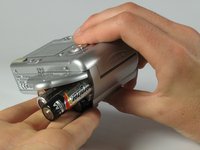
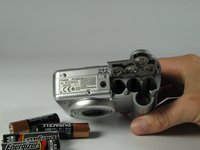
    • Remove the 4 AA batteries.

    • Watch for the orientation of the batteries as they slide out.

    • The battery orientation is shown under the battery flap itself and on a sticker next to the battery flap.

    crwdns2952109:0crwdne2952109:0

    crwdns2917038:0crwdne2917038:0

  4. Canon PowerShot A75 LCD Screen Replacement, Casing: crwdns2935265:04crwdnd2935265:01crwdnd2935265:01crwdne2935265:0
    • Remove the three 2.5mm screws on the bottom of the camera.

    crwdns2952109:0crwdne2952109:0

    crwdns2917038:0crwdne2917038:0

  5. Canon PowerShot A75 LCD Screen Replacement: crwdns2935265:05crwdnd2935265:01crwdnd2935265:01crwdne2935265:0
    • Remove the 3.8mm screw underneath the flap that covers the A/V port.

    crwdns2952109:0crwdne2952109:0

    crwdns2917038:0crwdne2917038:0

  6. Canon PowerShot A75 LCD Screen Replacement: crwdns2935265:06crwdnd2935265:01crwdnd2935265:02crwdne2935265:0 Canon PowerShot A75 LCD Screen Replacement: crwdns2935265:06crwdnd2935265:02crwdnd2935265:02crwdne2935265:0
    • Remove the 2.4mm screw located underneath the cover of the memory card slot.

    crwdns2952109:0crwdne2952109:0

    crwdns2917038:0crwdne2917038:0

  7. Canon PowerShot A75 LCD Screen Replacement: crwdns2935265:07crwdnd2935265:01crwdnd2935265:02crwdne2935265:0 Canon PowerShot A75 LCD Screen Replacement: crwdns2935265:07crwdnd2935265:02crwdnd2935265:02crwdne2935265:0
    • Open the memory card slot by sliding it laterally until you hear a click.

    • Remove the 5.9mm screw in the upper corner of the memory card slot.

    crwdns2952109:0crwdne2952109:0

    crwdns2917038:0crwdne2917038:0

  8. Canon PowerShot A75 LCD Screen Replacement: crwdns2935265:08crwdnd2935265:01crwdnd2935265:01crwdne2935265:0
    • Remove the two 4.1mm screws at the bottom of the battery flap.

    crwdns2952109:0crwdne2952109:0

    crwdns2917038:0crwdne2917038:0

  9. Canon PowerShot A75 LCD Screen Replacement: crwdns2935265:09crwdnd2935265:01crwdnd2935265:02crwdne2935265:0 Canon PowerShot A75 LCD Screen Replacement: crwdns2935265:09crwdnd2935265:02crwdnd2935265:02crwdne2935265:0
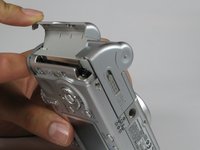
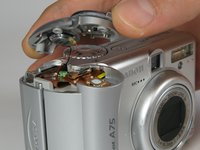
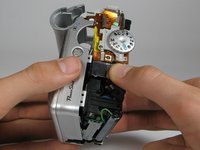
    • Lift the shutter button and speaker part from the top of the camera.

    • DO NOT pull the part too hard because there is a plug connecting the speaker to the camera.

    crwdns2952109:0crwdne2952109:0

    crwdns2917038:0crwdne2917038:0

  10. Canon PowerShot A75 LCD Screen Replacement: crwdns2935265:010crwdnd2935265:01crwdnd2935265:03crwdne2935265:0 Canon PowerShot A75 LCD Screen Replacement: crwdns2935265:010crwdnd2935265:02crwdnd2935265:03crwdne2935265:0 Canon PowerShot A75 LCD Screen Replacement: crwdns2935265:010crwdnd2935265:03crwdnd2935265:03crwdne2935265:0
    crwdns2935267:0crwdne2935267:0
    Tweezers
    $4.99
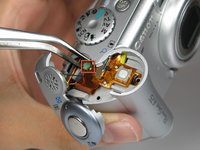
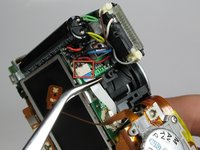
    • Using a pair of tweezers, grab the plug that connects the speaker to the camera and gently pull it out.

    crwdns2952109:0crwdne2952109:0

    crwdns2917038:0crwdne2917038:0

  11. Canon PowerShot A75 LCD Screen Replacement: crwdns2935265:011crwdnd2935265:01crwdnd2935265:01crwdne2935265:0
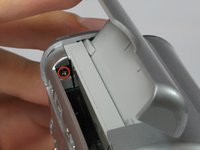
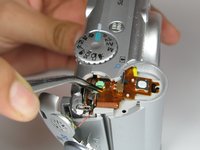
    • Remove the rightmost 4.2mm screw underneath the battery cover, not the center screw.

    crwdns2952109:0crwdne2952109:0

    crwdns2917038:0crwdne2917038:0

  12. Canon PowerShot A75 LCD Screen Replacement: crwdns2935265:012crwdnd2935265:01crwdnd2935265:03crwdne2935265:0 Canon PowerShot A75 LCD Screen Replacement: crwdns2935265:012crwdnd2935265:02crwdnd2935265:03crwdne2935265:0 Canon PowerShot A75 LCD Screen Replacement: crwdns2935265:012crwdnd2935265:03crwdnd2935265:03crwdne2935265:0
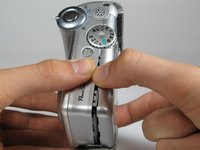
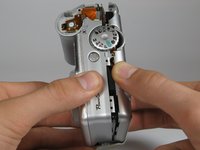
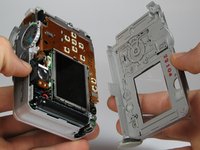
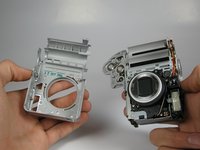
    • Separate the back casing and front casing of the camera using your hands.

    • Pulling the two halves apart can be difficult, especially at the top. Use a moderate amount of force.

    crwdns2952109:0crwdne2952109:0

    crwdns2917038:0crwdne2917038:0

  13. Canon PowerShot A75 LCD Screen Replacement: crwdns2935265:013crwdnd2935265:01crwdnd2935265:03crwdne2935265:0 Canon PowerShot A75 LCD Screen Replacement: crwdns2935265:013crwdnd2935265:02crwdnd2935265:03crwdne2935265:0 Canon PowerShot A75 LCD Screen Replacement: crwdns2935265:013crwdnd2935265:03crwdnd2935265:03crwdne2935265:0
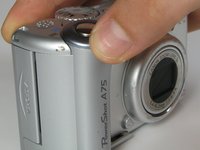
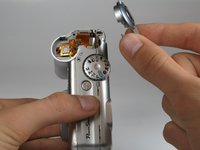
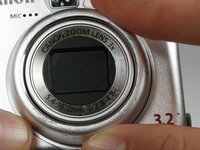
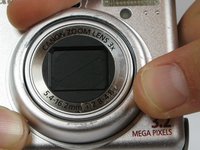
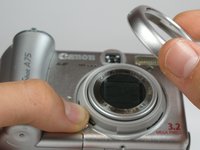
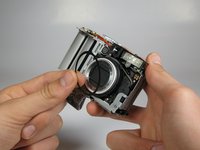
    • On the front of the camera, press the button on the lower left of the lens.

    • Twist the outer lens casing counter-clockwise and slide it out.

    crwdns2952109:0crwdne2952109:0

    crwdns2917038:0crwdne2917038:0

  14. Canon PowerShot A75 LCD Screen Replacement: crwdns2935265:014crwdnd2935265:01crwdnd2935265:03crwdne2935265:0 Canon PowerShot A75 LCD Screen Replacement: crwdns2935265:014crwdnd2935265:02crwdnd2935265:03crwdne2935265:0 Canon PowerShot A75 LCD Screen Replacement: crwdns2935265:014crwdnd2935265:03crwdnd2935265:03crwdne2935265:0
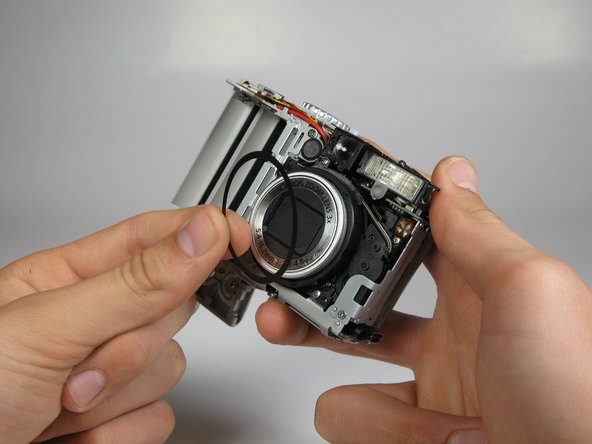
    • Take off the front casing.

    • There is a black rubber washer around the lens that comes out after you take the casing off. Make sure to replace it when putting the camera back together.

    crwdns2952109:0crwdne2952109:0

    crwdns2917038:0crwdne2917038:0

  15. Canon PowerShot A75 LCD Screen Replacement, LCD Screen: crwdns2935265:015crwdnd2935265:01crwdnd2935265:03crwdne2935265:0 Canon PowerShot A75 LCD Screen Replacement, LCD Screen: crwdns2935265:015crwdnd2935265:02crwdnd2935265:03crwdne2935265:0 Canon PowerShot A75 LCD Screen Replacement, LCD Screen: crwdns2935265:015crwdnd2935265:03crwdnd2935265:03crwdne2935265:0
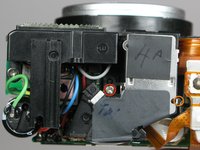
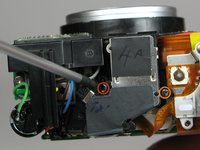
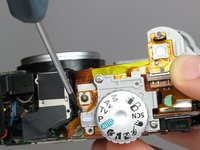
    • Remove the 4.4mm screw directly behind the eyepiece on the top of the camera.

    • Remove the 4.3mm screw to the right of the eyepiece housing in the crack in between the eyepiece and a ribbon cable on top of the camera.

    crwdns2952109:0crwdne2952109:0

    crwdns2917038:0crwdne2917038:0

  16. Canon PowerShot A75 LCD Screen Replacement: crwdns2935265:016crwdnd2935265:01crwdnd2935265:03crwdne2935265:0 Canon PowerShot A75 LCD Screen Replacement: crwdns2935265:016crwdnd2935265:02crwdnd2935265:03crwdne2935265:0 Canon PowerShot A75 LCD Screen Replacement: crwdns2935265:016crwdnd2935265:03crwdnd2935265:03crwdne2935265:0
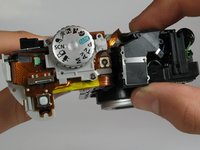
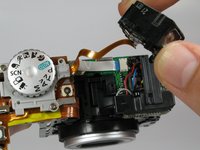
    • Gently wiggle the eyepiece out of its place. It should snap out of place.

    • There should be a white ribbon cable underneath attached to the motherboard.

    crwdns2952109:0crwdne2952109:0

    crwdns2917038:0crwdne2917038:0

  17. Canon PowerShot A75 LCD Screen Replacement: crwdns2935265:017crwdnd2935265:01crwdnd2935265:03crwdne2935265:0 Canon PowerShot A75 LCD Screen Replacement: crwdns2935265:017crwdnd2935265:02crwdnd2935265:03crwdne2935265:0 Canon PowerShot A75 LCD Screen Replacement: crwdns2935265:017crwdnd2935265:03crwdnd2935265:03crwdne2935265:0
    crwdns2935267:0crwdne2935267:0
    Tweezers
    $4.99
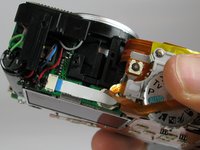
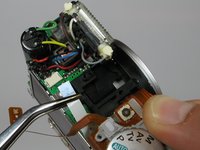
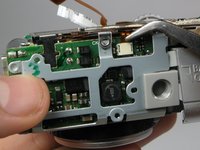
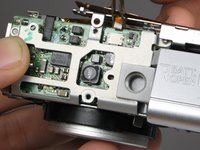
    • Locate the white cable on top of the camera where the eyepiece was.

    • Using tweezers, grasp the white cable as close to the connection point as possible and gently remove the cable.

    • The cable should just slide out with a slight tug.

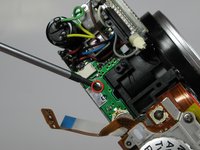
    • Remove the 2.9mm screw directly underneath the white cable.

    crwdns2952109:0crwdne2952109:0

    crwdns2917038:0crwdne2917038:0

  18. Canon PowerShot A75 LCD Screen Replacement: crwdns2935265:018crwdnd2935265:01crwdnd2935265:01crwdne2935265:0
    • Remove the 4.2mm screw directly under the battery flap.

    crwdns2952109:0crwdne2952109:0

    crwdns2917038:0crwdne2917038:0

  19. Canon PowerShot A75 LCD Screen Replacement: crwdns2935265:019crwdnd2935265:01crwdnd2935265:02crwdne2935265:0 Canon PowerShot A75 LCD Screen Replacement: crwdns2935265:019crwdnd2935265:02crwdnd2935265:02crwdne2935265:0
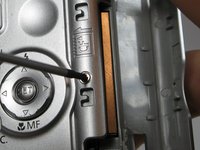
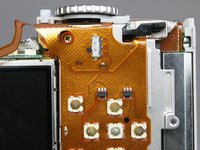
    • Remove the 3.4mm screw inside a deep hole on the back copper panel beneath the circular mode switcher.

    • This screw is a little difficult to get out.

    crwdns2952109:0crwdne2952109:0

    crwdns2917038:0crwdne2917038:0

  20. Canon PowerShot A75 LCD Screen Replacement: crwdns2935265:020crwdnd2935265:01crwdnd2935265:01crwdne2935265:0
    • Remove 2.5mm the screw in the silver housing on the bottom of the camera. This screw is holding the back panel in.

    crwdns2952109:0crwdne2952109:0

    crwdns2917038:0crwdne2917038:0

  21. Canon PowerShot A75 LCD Screen Replacement: crwdns2935265:021crwdnd2935265:01crwdnd2935265:02crwdne2935265:0 Canon PowerShot A75 LCD Screen Replacement: crwdns2935265:021crwdnd2935265:02crwdnd2935265:02crwdne2935265:0
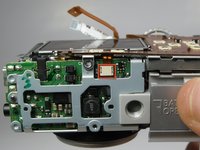
    • Remove the 3.4mm screw near the bottom of the back face of the camera on the copper ribbon.

    • Remove the 2.9mm screw on the back face of the camera in the bottom left corner.

    crwdns2952109:0crwdne2952109:0

    crwdns2917038:0crwdne2917038:0

  22. Canon PowerShot A75 LCD Screen Replacement: crwdns2935265:022crwdnd2935265:01crwdnd2935265:03crwdne2935265:0 Canon PowerShot A75 LCD Screen Replacement: crwdns2935265:022crwdnd2935265:02crwdnd2935265:03crwdne2935265:0 Canon PowerShot A75 LCD Screen Replacement: crwdns2935265:022crwdnd2935265:03crwdnd2935265:03crwdne2935265:0
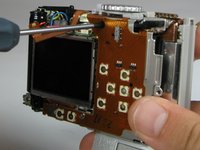
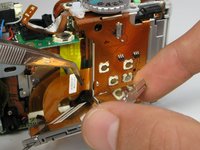
    • Locate the copper ribbon cable attaching the LCD screen to the bottom motherboard.

    • Grasp the cable near the white connector and gently remove the cable.

    crwdns2952109:0crwdne2952109:0

    crwdns2917038:0crwdne2917038:0

  23. Canon PowerShot A75 LCD Screen Replacement: crwdns2935265:023crwdnd2935265:01crwdnd2935265:02crwdne2935265:0 Canon PowerShot A75 LCD Screen Replacement: crwdns2935265:023crwdnd2935265:02crwdnd2935265:02crwdne2935265:0
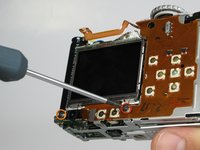
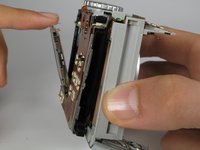
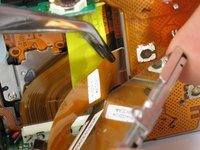
    • Gently pull back the LCD screen to around 45 degrees from the back of the camera.

    • Do not pull the back panel too far, it is connected to the top of the camera with ribbon cables and is not meant to separate from the camera.

    • Locate the larger ribbon cable connecting the screen to the body of the camera.

    crwdns2952109:0crwdne2952109:0

    crwdns2917038:0crwdne2917038:0

  24. Canon PowerShot A75 LCD Screen Replacement: crwdns2935265:024crwdnd2935265:01crwdnd2935265:03crwdne2935265:0 Canon PowerShot A75 LCD Screen Replacement: crwdns2935265:024crwdnd2935265:02crwdnd2935265:03crwdne2935265:0 Canon PowerShot A75 LCD Screen Replacement: crwdns2935265:024crwdnd2935265:03crwdnd2935265:03crwdne2935265:0
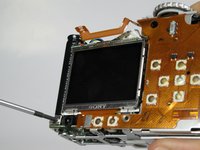
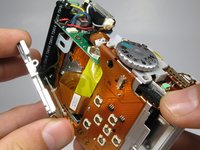
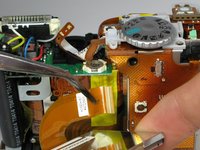
    • Gently grasp and pull the cable from the motherboard. The cable should easily slide out.

    • This ribbon cable may be easier to remove using your hands instead of the tweezers.

    • The LCD should now be out after the cable is removed.

    crwdns2952109:0crwdne2952109:0

    crwdns2917038:0crwdne2917038:0

crwdns2915888:0crwdne2915888:0

After all the steps are done, you can make any necessary repairs to the LCD screen. To reassemble your device, follow these instructions in reverse order.

crwdns2935221:0crwdne2935221:0

Austin Fox

crwdns2935283:004/11/12crwdne2935283:0

1 crwdns2915208:0crwdne2915208:0

crwdns2935297:02crwdne2935297:0

crwdns2935287:0crwdne2935287:0

Cal Poly, Team 17-30, Amido Spring 2012 crwdns2935289:0Cal Poly, Team 17-30, Amido Spring 2012crwdne2935289:0

CPSU-AMIDO-S12S17G30

crwdns2931471:05crwdne2931471:0

crwdns2935297:012crwdne2935297:0

crwdns2947412:00crwdne2947412:0

crwdns2917038:0crwdne2917038:0

crwdns2936625:0crwdne2936625:0:

crwdns2936751:024crwdne2936751:0 1

crwdns2936753:07crwdne2936753:0 8

crwdns2936753:030crwdne2936753:0 51

crwdns2942667:0crwdne2942667:0 3,310