crwdns2933423:0crwdne2933423:0
crwdns2947577:0crwdnd2947577:0crwdne2947577:0

BUSY Bar Disassembly

crwdns2942213:0crwdne2942213:0

  1. BUSY Bar Disassembly, Remove the back cover: crwdns2935265:01crwdnd2935265:01crwdnd2935265:03crwdne2935265:0 BUSY Bar Disassembly, Remove the back cover: crwdns2935265:01crwdnd2935265:02crwdnd2935265:03crwdne2935265:0 BUSY Bar Disassembly, Remove the back cover: crwdns2935265:01crwdnd2935265:03crwdnd2935265:03crwdne2935265:0
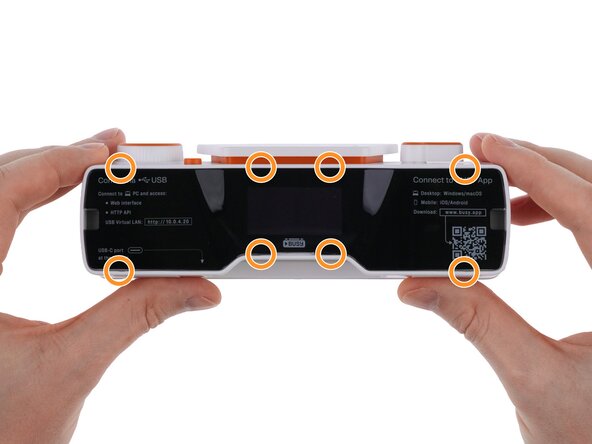
    • The back cover is held in place by 8 clips.

    • Use a plastic card to release one of the clips near the center at the bottom of the back cover.

    • Gently release the remaining clips until the back cover comes off completely.

  2. BUSY Bar Disassembly, Remove the screws: crwdns2935265:02crwdnd2935265:01crwdnd2935265:03crwdne2935265:0 BUSY Bar Disassembly, Remove the screws: crwdns2935265:02crwdnd2935265:02crwdnd2935265:03crwdne2935265:0 BUSY Bar Disassembly, Remove the screws: crwdns2935265:02crwdnd2935265:03crwdnd2935265:03crwdne2935265:0
    • Use a PH1 Phillips screwdriver to remove 1 screw from the bottom and 4 screws from the back of the device.

  3. BUSY Bar Disassembly, Pull out the front display unit: crwdns2935265:03crwdnd2935265:01crwdnd2935265:03crwdne2935265:0 BUSY Bar Disassembly, Pull out the front display unit: crwdns2935265:03crwdnd2935265:02crwdnd2935265:03crwdne2935265:0 BUSY Bar Disassembly, Pull out the front display unit: crwdns2935265:03crwdnd2935265:03crwdnd2935265:03crwdne2935265:0
    • Do not pull the display unit too far out of the housing, as this may damage the display cable or connectors.

    • Do not disconnect the display cable. Always disconnect the battery first to prevent a short circuit when disconnecting flat cables.

    • Use a plastic card to release the 2 latches on top of the front display.

    • Gently pull the front display unit out toward the right.

  4. BUSY Bar Disassembly, Remove the battery: crwdns2935265:04crwdnd2935265:01crwdnd2935265:03crwdne2935265:0 BUSY Bar Disassembly, Remove the battery: crwdns2935265:04crwdnd2935265:02crwdnd2935265:03crwdne2935265:0 BUSY Bar Disassembly, Remove the battery: crwdns2935265:04crwdnd2935265:03crwdnd2935265:03crwdne2935265:0
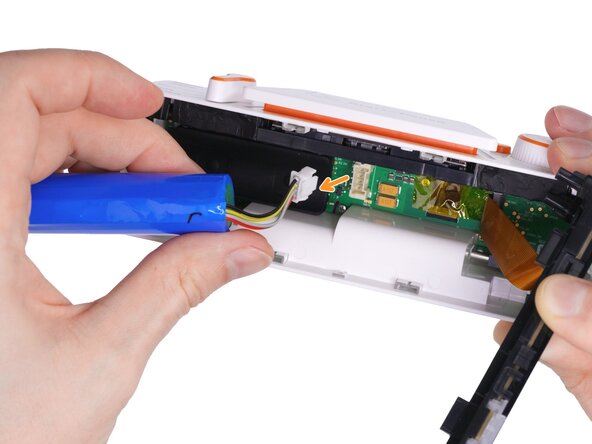
    • Gently move the battery to the left so you can access the connector.

    • Use tweezers or your fingertip to press the connector latch.

    • Pull the battery connector to disconnect it from the PCB.

  5. BUSY Bar Disassembly, Remove the front display unit: crwdns2935265:05crwdnd2935265:01crwdnd2935265:03crwdne2935265:0 BUSY Bar Disassembly, Remove the front display unit: crwdns2935265:05crwdnd2935265:02crwdnd2935265:03crwdne2935265:0 BUSY Bar Disassembly, Remove the front display unit: crwdns2935265:05crwdnd2935265:03crwdnd2935265:03crwdne2935265:0
    • Use a spudger to release the display cable connector latch.

    • Pull the cable in the direction indicated by the arrow.

    • Remove the front display unit.

  6. BUSY Bar Disassembly, Remove the battery pad: crwdns2935265:06crwdnd2935265:01crwdnd2935265:02crwdne2935265:0 BUSY Bar Disassembly, Remove the battery pad: crwdns2935265:06crwdnd2935265:02crwdnd2935265:02crwdne2935265:0
    • Use your fingers to lift and remove the silicone battery pad.

  7. BUSY Bar Disassembly, Disconnect the cable connecting the main and control PCBs: crwdns2935265:07crwdnd2935265:01crwdnd2935265:03crwdne2935265:0 BUSY Bar Disassembly, Disconnect the cable connecting the main and control PCBs: crwdns2935265:07crwdnd2935265:02crwdnd2935265:03crwdne2935265:0 BUSY Bar Disassembly, Disconnect the cable connecting the main and control PCBs: crwdns2935265:07crwdnd2935265:03crwdnd2935265:03crwdne2935265:0
    • Use tweezers to remove the yellow tape from the connector on the main PCB.

    • Use a halberd spudger to release the connector latch.

    • Use tweezers to disconnect the cable from the connector.

  8. BUSY Bar Disassembly, Disconnect the back display: crwdns2935265:08crwdnd2935265:01crwdnd2935265:02crwdne2935265:0 BUSY Bar Disassembly, Disconnect the back display: crwdns2935265:08crwdnd2935265:02crwdnd2935265:02crwdne2935265:0
    • Use a halberd spudger to release the latch on the display connector.

    • Gently press the flex cable with your finger and slide it out of the connector.

  9. BUSY Bar Disassembly, Remove the speaker: crwdns2935265:09crwdnd2935265:01crwdnd2935265:03crwdne2935265:0 BUSY Bar Disassembly, Remove the speaker: crwdns2935265:09crwdnd2935265:02crwdnd2935265:03crwdne2935265:0 BUSY Bar Disassembly, Remove the speaker: crwdns2935265:09crwdnd2935265:03crwdnd2935265:03crwdne2935265:0
    • Use a spudger to pry up the speaker connector and disconnect it.

    • Use tweezers to remove the speaker from the device housing.

  10. BUSY Bar Disassembly, Remove the control knobs: crwdns2935265:010crwdnd2935265:01crwdnd2935265:03crwdne2935265:0 BUSY Bar Disassembly, Remove the control knobs: crwdns2935265:010crwdnd2935265:02crwdnd2935265:03crwdne2935265:0 BUSY Bar Disassembly, Remove the control knobs: crwdns2935265:010crwdnd2935265:03crwdnd2935265:03crwdne2935265:0
    • Use a spudger or an opening tool to remove the scroll wheel, holding it with your other hand to prevent bending.

    • Using both hands, lift up the Start/Pause button knob to remove it.

    • Use a spudger or an opening tool to remove the mode selector cover.

  11. BUSY Bar Disassembly, Remove the main PCB: crwdns2935265:011crwdnd2935265:01crwdnd2935265:03crwdne2935265:0 BUSY Bar Disassembly, Remove the main PCB: crwdns2935265:011crwdnd2935265:02crwdnd2935265:03crwdne2935265:0 BUSY Bar Disassembly, Remove the main PCB: crwdns2935265:011crwdnd2935265:03crwdnd2935265:03crwdne2935265:0
    • Use a PH1 screwdriver to remove the 3 screws securing the PCB.

    • Carefully lift the PCB out of the device housing.

  12. BUSY Bar Disassembly, Remove the control unit: crwdns2935265:012crwdnd2935265:01crwdnd2935265:03crwdne2935265:0 BUSY Bar Disassembly, Remove the control unit: crwdns2935265:012crwdnd2935265:02crwdnd2935265:03crwdne2935265:0 BUSY Bar Disassembly, Remove the control unit: crwdns2935265:012crwdnd2935265:03crwdnd2935265:03crwdne2935265:0
    • Peel off the 2 black stickers from the control unit.

    • Use a spudger to release the 2 clips on the sides of the unit.

    • Use a halberd spudger to release the 2 clips closer to the center.

    • Remove the control unit from the device housing.

  13. BUSY Bar Disassembly, Remove the Back button cap and the light guides: crwdns2935265:013crwdnd2935265:01crwdnd2935265:03crwdne2935265:0 BUSY Bar Disassembly, Remove the Back button cap and the light guides: crwdns2935265:013crwdnd2935265:02crwdnd2935265:03crwdne2935265:0 BUSY Bar Disassembly, Remove the Back button cap and the light guides: crwdns2935265:013crwdnd2935265:03crwdnd2935265:03crwdne2935265:0
    • Remove the 2 white status indicator light guides by lifting them from the edge with your finger.

    • Use a spudger to release the latch securing the Back button cover.

    • Remove the Back button cover.

  14. BUSY Bar Disassembly, Remove the button stabilizer: crwdns2935265:014crwdnd2935265:01crwdnd2935265:03crwdne2935265:0 BUSY Bar Disassembly, Remove the button stabilizer: crwdns2935265:014crwdnd2935265:02crwdnd2935265:03crwdne2935265:0 BUSY Bar Disassembly, Remove the button stabilizer: crwdns2935265:014crwdnd2935265:03crwdnd2935265:03crwdne2935265:0
    • Remove the 3 screws from the bottom of the control unit.

    • Remove the stabilizer holder.

  15. BUSY Bar Disassembly, Remove the control PCB from the housing: crwdns2935265:015crwdnd2935265:01crwdnd2935265:03crwdne2935265:0 BUSY Bar Disassembly, Remove the control PCB from the housing: crwdns2935265:015crwdnd2935265:02crwdnd2935265:03crwdne2935265:0 BUSY Bar Disassembly, Remove the control PCB from the housing: crwdns2935265:015crwdnd2935265:03crwdnd2935265:03crwdne2935265:0
    • The control PCB is secured in the plastic housing by 5 latches.

    • Gently pull the PCB away from the plastic housing. You can pull by the scroll wheel or the mode selector.

    • Release the latches by bending them outward from the PCB using your finger, a spudger, or an opening tool.

    • Once all latches are released, remove the PCB from the housing.

  16. BUSY Bar Disassembly, Disconnect the cable from the control PCB: crwdns2935265:016crwdnd2935265:01crwdnd2935265:02crwdne2935265:0 BUSY Bar Disassembly, Disconnect the cable from the control PCB: crwdns2935265:016crwdnd2935265:02crwdnd2935265:02crwdne2935265:0
    • Use a spudger to carefully release the connector latch.

    • Remove the flex cable.

  17. BUSY Bar Disassembly, Remove the front display back cover: crwdns2935265:017crwdnd2935265:01crwdnd2935265:03crwdne2935265:0 BUSY Bar Disassembly, Remove the front display back cover: crwdns2935265:017crwdnd2935265:02crwdnd2935265:03crwdne2935265:0 BUSY Bar Disassembly, Remove the front display back cover: crwdns2935265:017crwdnd2935265:03crwdnd2935265:03crwdne2935265:0
    • The back cover of the front display unit is secured by 6 latches.

    • Use a spudger or a plastic card to carefully release the latches around the front display.

    • Remove the back cover of the front display unit.

  18. BUSY Bar Disassembly, Disassemble the front display unit: crwdns2935265:018crwdnd2935265:01crwdnd2935265:03crwdne2935265:0 BUSY Bar Disassembly, Disassemble the front display unit: crwdns2935265:018crwdnd2935265:02crwdnd2935265:03crwdne2935265:0 BUSY Bar Disassembly, Disassemble the front display unit: crwdns2935265:018crwdnd2935265:03crwdnd2935265:03crwdne2935265:0
    • The front display unit consists of a display PCB with LEDs and LED drivers, a plastic light separator, a matte light-diffusing film, and an outer tinted glass.

    • Remove the display PCB from the front display unit.

    • Remove the light separator.

    • Remove the light-diffusing film.

  19. BUSY Bar Disassembly, Remove the light guide and the cable from the display PCB: crwdns2935265:019crwdnd2935265:01crwdnd2935265:03crwdne2935265:0 BUSY Bar Disassembly, Remove the light guide and the cable from the display PCB: crwdns2935265:019crwdnd2935265:02crwdnd2935265:03crwdne2935265:0 BUSY Bar Disassembly, Remove the light guide and the cable from the display PCB: crwdns2935265:019crwdnd2935265:03crwdnd2935265:03crwdne2935265:0
    • Tilt the ambient light sensor light guide forward to disconnect it from the display PCB.

    • Use a spudger to release the flex cable connector latch.

    • Pull the flex cable in the direction indicated by the arrow to remove it.

  20. BUSY Bar Disassembly, Remove the monitor mount: crwdns2935265:020crwdnd2935265:01crwdnd2935265:03crwdne2935265:0 BUSY Bar Disassembly, Remove the monitor mount: crwdns2935265:020crwdnd2935265:02crwdnd2935265:03crwdne2935265:0 BUSY Bar Disassembly, Remove the monitor mount: crwdns2935265:020crwdnd2935265:03crwdnd2935265:03crwdne2935265:0
    • The 2 black polyurethane friction elements on the mount’s pivot create rotational resistance to hold the leg in intermediate positions.

    • Use a spudger to slide the 2 friction elements toward the center of the device. They move together with the short metal shafts and can then be removed from the housing.

    • Press the mount leg downward toward the center of the device (following the orange arrow).

    • At the same time push the mount leg sideways (following the red arrow) to release it from the slot.

    • Repeat these steps for the opposite side of the leg to remove it.

  21. BUSY Bar Disassembly, Device fully disassembled: crwdns2935265:021crwdnd2935265:01crwdnd2935265:01crwdne2935265:0
    • The device is now fully disassembled. The picture shows all its components.

crwdns2915888:0crwdne2915888:0

To reassemble the device, follow these steps in reverse order.

crwdns2935229:03crwdne2935229:0

Flipper Devices

crwdns2935283:006/29/22crwdne2935283:0

835 crwdns2915208:0crwdne2915208:0

crwdns2935297:03crwdne2935297:0

crwdns2947412:00crwdne2947412:0

crwdns2917038:0crwdne2917038:0

crwdns2936625:0crwdne2936625:0:

crwdns2936751:024crwdne2936751:0 0

crwdns2936753:07crwdne2936753:0 6

crwdns2936753:030crwdne2936753:0 25

crwdns2942667:0crwdne2942667:0 426