crwdns2933423:0crwdne2933423:0
crwdns2947577:0crwdnd2947577:0crwdne2947577:0

Azpen A720 Touch Screen Replacement

crwdns2869540:0crwdne2869540:0: 3.2K

crwdns2959988:0crwdne2959988:0

crwdns2959990:0crwdne2959990:0
1
crwdns2959992:0crwdne2959992:0
14
crwdns2959994:0crwdne2959994:0
90
crwdns2959996:0crwdne2959996:0
3,230
crwdns2955950:0crwdne2955950:0: 2

crwdns2960004:02crwdne2960004:0.

crwdns2959984:0crwdne2959984:0: 1

crwdns2959972:01crwdne2959972:0

crwdns2959986:0crwdne2959986:0: 1

crwdns2959980:01crwdne2959980:0

crwdns2955944:0crwdne2955944:0: crwdns2931287:020crwdne2931287:0
crwdns2955970:0crwdne2955970:0: crwdns2937801:0crwdne2937801:0
crwdns2862611:0crwdne2862611:0

crwdns2862612:0crwdne2862612:0

crwdns2862629:0crwdne2862629:0

crwdns2862630:0crwdne2862630:0

Azpen A720 Touch Screen Replacement

crwdns2915892:0crwdne2915892:0

crwdns2959928:0crwdne2959928:0 ↓

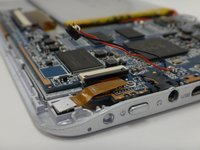
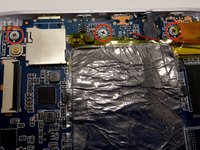
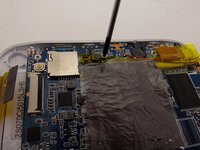
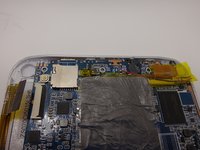
The touchscreen is embedded in the outer front casing of your Azpen A720 tablet. If the front touch screen is cracked or is not responding properly to touch, you should replace it. This replacement is moderately difficult, and it may take some time and patience, but this guide will help you through the process of replacing the tablet's front casing and touch screen.

crwdns2959930:0crwdne2959930:0

crwdns2943215:0crwdne2943215:0

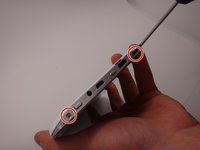
    1. Azpen A720 Touch Screen Replacement, Back Cover: crwdns2935265:01crwdnd2935265:01crwdnd2935265:02crwdne2935265:0 Azpen A720 Touch Screen Replacement, Back Cover: crwdns2935265:01crwdnd2935265:02crwdnd2935265:02crwdne2935265:0
      • Use a Phillips #00 screwdriver to remove the two 4mm screws found on the top edge of the tablet near the power button.

      crwdns2952109:0crwdne2952109:0

      crwdns2917038:0crwdne2917038:0

    2. Azpen A720 Touch Screen Replacement: crwdns2935265:02crwdnd2935265:01crwdnd2935265:03crwdne2935265:0 Azpen A720 Touch Screen Replacement: crwdns2935265:02crwdnd2935265:02crwdnd2935265:03crwdne2935265:0 Azpen A720 Touch Screen Replacement: crwdns2935265:02crwdnd2935265:03crwdnd2935265:03crwdne2935265:0
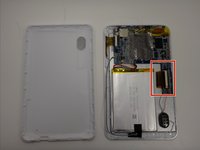
      • Use the plastic opening tool to pry the white back from the silver frame. Start near the micro SD slot.

      • Slide the plastic opening tool around the perimeter of the casing until the back is disconnected.

      crwdns2952109:0crwdne2952109:0

      crwdns2917038:0crwdne2917038:0

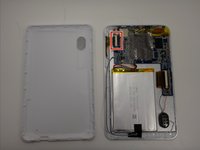
    3. Azpen A720 Touch Screen Replacement: crwdns2935265:03crwdnd2935265:01crwdnd2935265:01crwdne2935265:0
      • Remove the rear casing.

      crwdns2952109:0crwdne2952109:0

      crwdns2917038:0crwdne2917038:0

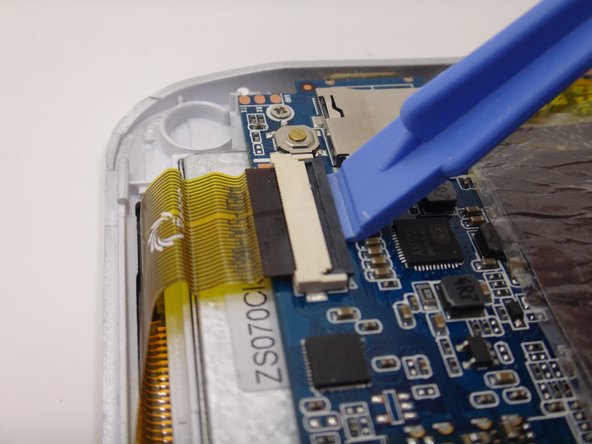
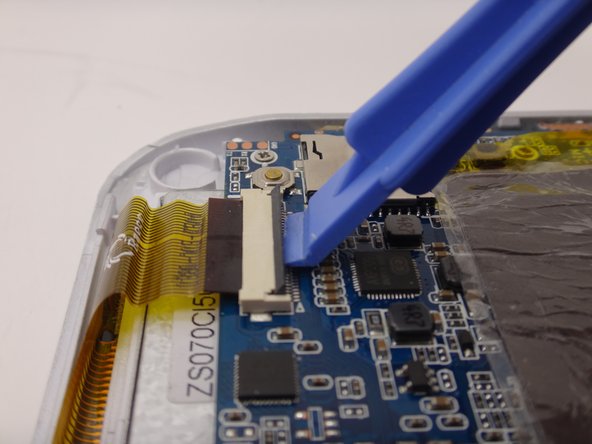
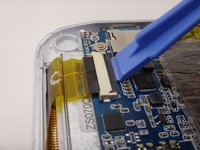
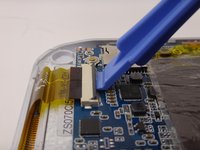
    1. Azpen A720 Touch Screen Replacement, Touch Screen: crwdns2935265:04crwdnd2935265:01crwdnd2935265:03crwdne2935265:0 Azpen A720 Touch Screen Replacement, Touch Screen: crwdns2935265:04crwdnd2935265:02crwdnd2935265:03crwdne2935265:0 Azpen A720 Touch Screen Replacement, Touch Screen: crwdns2935265:04crwdnd2935265:03crwdnd2935265:03crwdne2935265:0
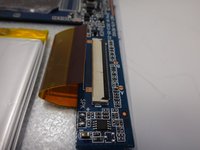
      • Use the plastic opening tool to gently lift the release lever for the ZIF cable.

      • The ZIF connector is delicate. Be careful not to damage the tab!

      crwdns2952109:0crwdne2952109:0

      crwdns2917038:0crwdne2917038:0

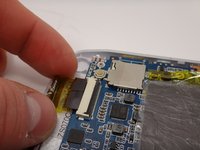
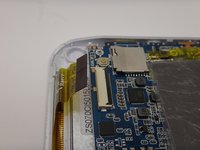
    2. Azpen A720 Touch Screen Replacement: crwdns2935265:05crwdnd2935265:01crwdnd2935265:02crwdne2935265:0 Azpen A720 Touch Screen Replacement: crwdns2935265:05crwdnd2935265:02crwdnd2935265:02crwdne2935265:0
      • Gently remove the ZIF cable from the connector.

      crwdns2952109:0crwdne2952109:0

      crwdns2917038:0crwdne2917038:0

    3. Azpen A720 Touch Screen Replacement: crwdns2935265:06crwdnd2935265:01crwdnd2935265:02crwdne2935265:0 Azpen A720 Touch Screen Replacement: crwdns2935265:06crwdnd2935265:02crwdnd2935265:02crwdne2935265:0
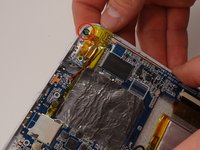
      • Disconnect the second ZIF connector using the same method detailed earlier.

      crwdns2952109:0crwdne2952109:0

      crwdns2917038:0crwdne2917038:0

    4. Azpen A720 Touch Screen Replacement: crwdns2935265:07crwdnd2935265:01crwdnd2935265:03crwdne2935265:0 Azpen A720 Touch Screen Replacement: crwdns2935265:07crwdnd2935265:02crwdnd2935265:03crwdne2935265:0 Azpen A720 Touch Screen Replacement: crwdns2935265:07crwdnd2935265:03crwdnd2935265:03crwdne2935265:0
      crwdns2935267:0crwdne2935267:0
      Tweezers
      $4.99
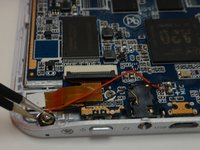
      • Locate the microphone. It is at the top of the device and next to the audio jack.

      • Using tweezers, gently remove the microphone.

      • Remember to reinsert the microphone when reassembling!

      crwdns2952109:0crwdne2952109:0

      crwdns2917038:0crwdne2917038:0

    5. Azpen A720 Touch Screen Replacement: crwdns2935265:08crwdnd2935265:01crwdnd2935265:03crwdne2935265:0 Azpen A720 Touch Screen Replacement: crwdns2935265:08crwdnd2935265:02crwdnd2935265:03crwdne2935265:0 Azpen A720 Touch Screen Replacement: crwdns2935265:08crwdnd2935265:03crwdnd2935265:03crwdne2935265:0
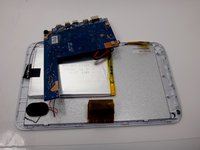
      • Remove the three 4mm Phillips #00 screws securing the motherboard in place.

      crwdns2952109:0crwdne2952109:0

      crwdns2917038:0crwdne2917038:0

    6. Azpen A720 Touch Screen Replacement: crwdns2935265:09crwdnd2935265:01crwdnd2935265:03crwdne2935265:0 Azpen A720 Touch Screen Replacement: crwdns2935265:09crwdnd2935265:02crwdnd2935265:03crwdne2935265:0 Azpen A720 Touch Screen Replacement: crwdns2935265:09crwdnd2935265:03crwdnd2935265:03crwdne2935265:0
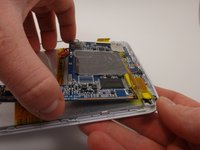
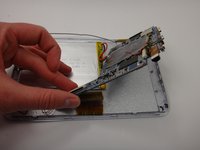
      • Remove the motherboard from the casing, being careful not to damage the remaining wires.

      • It's okay if the buttons fall out of the case.

      • Flip the motherboard so it rests upside down and out of the way of the metal backing.

      crwdns2952109:0crwdne2952109:0

      crwdns2917038:0crwdne2917038:0

    7. Azpen A720 Touch Screen Replacement: crwdns2935265:010crwdnd2935265:01crwdnd2935265:02crwdne2935265:0 Azpen A720 Touch Screen Replacement: crwdns2935265:010crwdnd2935265:02crwdnd2935265:02crwdne2935265:0
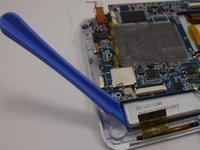
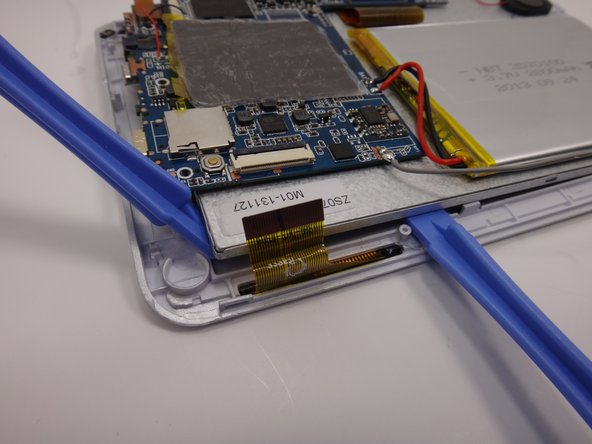
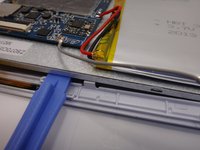
      • Starting at the edge, use a plastic opening tool to carefully pry the front casing off of the metal backing.

      • Leave the plastic opening tool in place underneath the metal backing to prop it up.

      • Move the motherboard out of the way as needed.

      crwdns2952109:0crwdne2952109:0

      crwdns2917038:0crwdne2917038:0

    8. Azpen A720 Touch Screen Replacement: crwdns2935265:011crwdnd2935265:01crwdnd2935265:02crwdne2935265:0 Azpen A720 Touch Screen Replacement: crwdns2935265:011crwdnd2935265:02crwdnd2935265:02crwdne2935265:0
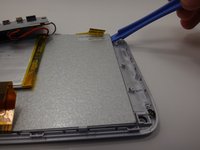
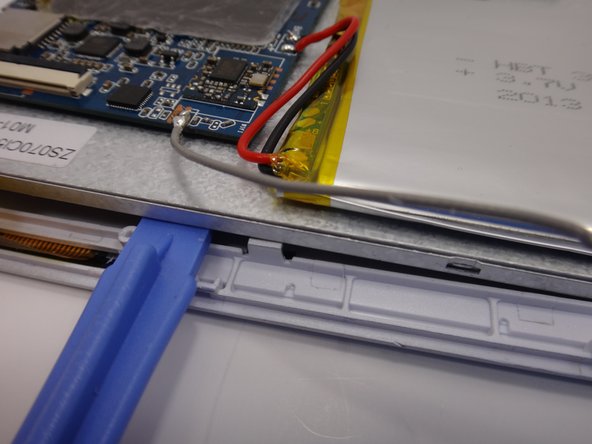
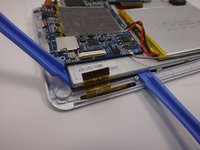
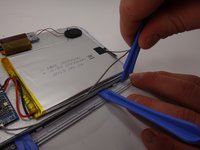
      • Using a second plastic opening tool, pry the adjacent side of the metal backing from the front casing/touch screen.

      • Pry close to the plastic tabs so you do not break them.

      • Leave the plastic opening tool in place underneath the metal backing to prop it up.

      crwdns2952109:0crwdne2952109:0

      crwdns2917038:0crwdne2917038:0

    9. Azpen A720 Touch Screen Replacement: crwdns2935265:012crwdnd2935265:01crwdnd2935265:01crwdne2935265:0
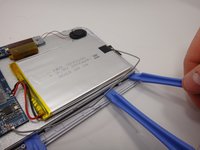
      • Remove the first plastic opening tool and use it to pry along the second edge.

      • Slide the tool along the edge until it is close the next tab, and gently pry the metal up.

      crwdns2952109:0crwdne2952109:0

      crwdns2917038:0crwdne2917038:0

    10. Azpen A720 Touch Screen Replacement: crwdns2935265:013crwdnd2935265:01crwdnd2935265:03crwdne2935265:0 Azpen A720 Touch Screen Replacement: crwdns2935265:013crwdnd2935265:02crwdnd2935265:03crwdne2935265:0 Azpen A720 Touch Screen Replacement: crwdns2935265:013crwdnd2935265:03crwdnd2935265:03crwdne2935265:0
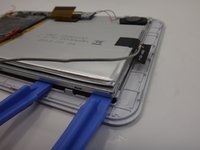
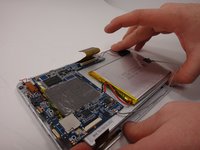
      • Use a third plastic opening tool to pry at the corner of the tablet and pop off the metal backing.

      crwdns2952109:0crwdne2952109:0

      crwdns2917038:0crwdne2917038:0

    11. Azpen A720 Touch Screen Replacement: crwdns2935265:014crwdnd2935265:01crwdnd2935265:03crwdne2935265:0 Azpen A720 Touch Screen Replacement: crwdns2935265:014crwdnd2935265:02crwdnd2935265:03crwdne2935265:0 Azpen A720 Touch Screen Replacement: crwdns2935265:014crwdnd2935265:03crwdnd2935265:03crwdne2935265:0
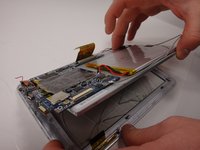
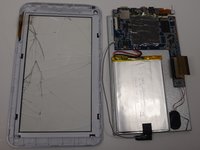
      • Lift the metal backing from the propped edge to remove it from the front casing.

      • Replace the broken front touch screen and casing with a new one.

      crwdns2952109:0crwdne2952109:0

      crwdns2917038:0crwdne2917038:0

crwdns2915888:0crwdne2915888:0

To reassemble your device, follow these instructions in reverse order.

crwdns2935221:0crwdne2935221:0

crwdns2935227:0crwdne2935227:0

Anna

crwdns2935283:003/17/15crwdne2935283:0

353 crwdns2915208:0crwdne2915208:0

crwdns2935297:03crwdne2935297:0

crwdns2935287:0crwdne2935287:0

Michigan Tech, Team 1-3, Lauer Spring 2015 crwdns2935289:0Michigan Tech, Team 1-3, Lauer Spring 2015crwdne2935289:0

MTU-LAUER-S15S1G3

crwdns2931471:02crwdne2931471:0

crwdns2935297:060crwdne2935297:0

crwdns2947412:00crwdne2947412:0

crwdns2917038:0crwdne2917038:0

crwdns2936625:0crwdne2936625:0:

crwdns2936751:024crwdne2936751:0 1

crwdns2936753:07crwdne2936753:0 14

crwdns2936753:030crwdne2936753:0 90

crwdns2959996:0crwdne2959996:0 3,230