crwdns2915892:0crwdne2915892:0
If your Alienware AW610M mouse cursor moves erratically, lags, or stops responding, the problem might not be the sensor; it could be the mouse feet. This guide will show you how to replace the mouse feet on your Alienware AW610M to get smooth movement and accurate cursor tracking. For additional details to prepare for replacing the mouse feet, try visiting the "Cursor Tracking Does Not Work" troubleshooting page.
crwdns2942213:0crwdne2942213:0
-
-
-
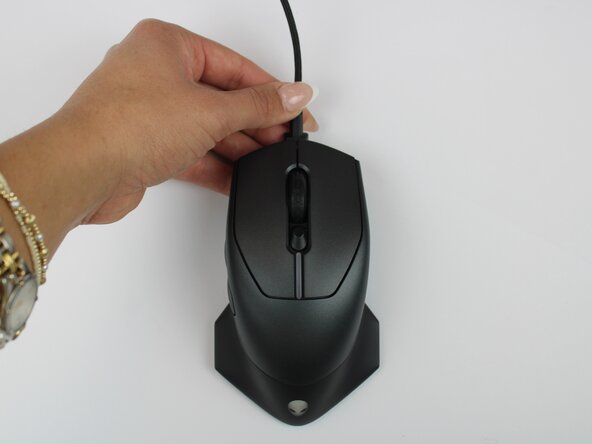
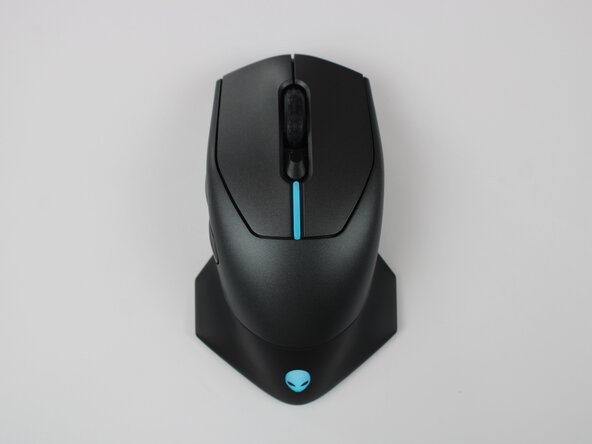
Power off the mouse and disconnect any wired connections.
 crwdns2952109:0crwdne2952109:0
-
-
-
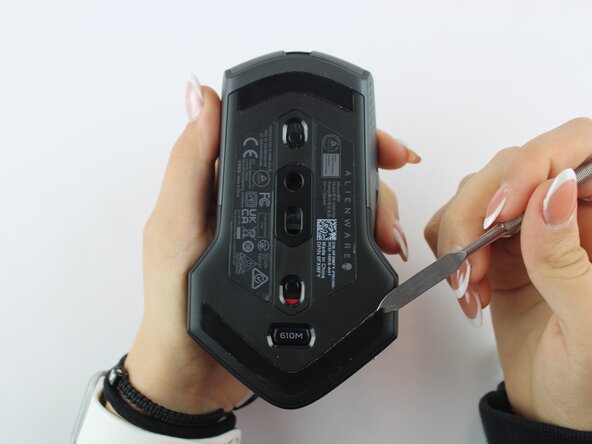
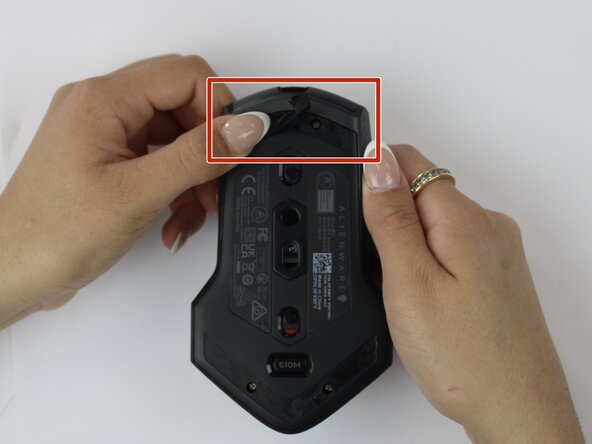
Use a spudger to gently lift and remove the old mouse feet.
-
-
-
-
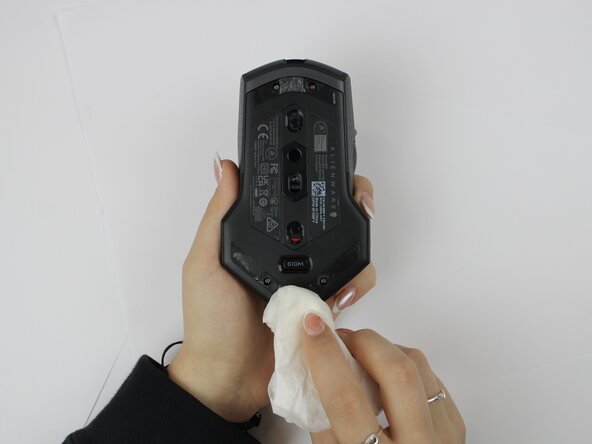
Take a lint free cloth lightly dampened and clean away any remaining adhesive residue.
-
-
-
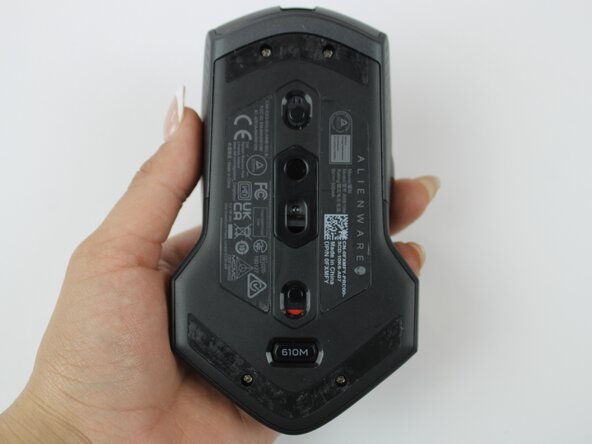
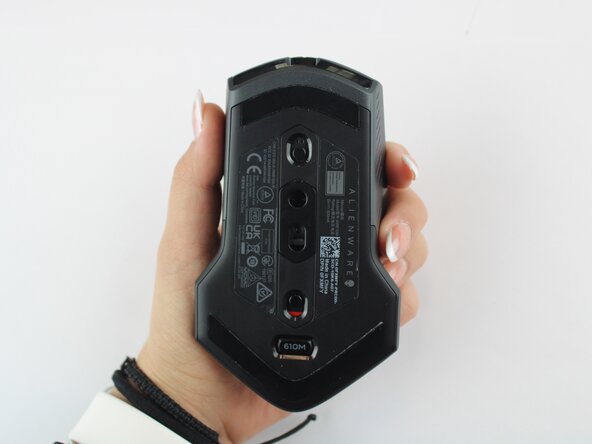
Peel the adhesive backing off the new mouse feet. Align the mouse foot with its designated area on the mouse. Press firmly to secure it in place. Repeat steps for bottom mouse foot.
-
-
-
Power the mouse back on via wired or wireless connection and test the glide and tracking on a smooth surface.
-
-











To reassemble your device, follow these instructions in reverse order.

crwdns2935287:0crwdne2935287:0

Texas Tech, Team 46-4, Johansen Fall 2025 crwdns2935289:0Texas Tech, Team 46-4, Johansen Fall 2025crwdne2935289:0
TTU-JOHANSEN-F25S46G4
crwdns2931471:04crwdne2931471:0
crwdns2935297:060crwdne2935297:0
