crwdns2915892:0crwdne2915892:0
It is possible that your battery has stopped working due to physical or electrical damage. A replacement batter will need to be purchased. After purchasing a new battery follow these steps to replace your broken battery.
crwdns2942213:0crwdne2942213:0
-
-
Use the Phillips #00 screwdriver to remove the seven 90mm screws.
-
Use the Phillips #00 screwdriver to remove the four 50mm screws.
 crwdns2952109:0crwdne2952109:0
-
-
-
Next, use the plastic opening tool to carefully pop off the keyboard cover panel.
-
-
crwdns2935267:0crwdne2935267:0Tweezers$4.99
-
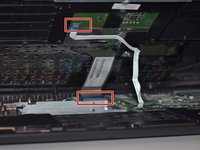
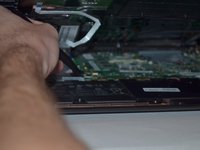
Lift palm rest and unplug keyboard cable and touchpad cable using tweezers. After these two cables have been unplugged you can remove the keyboard cover panel.
-
-
-
-
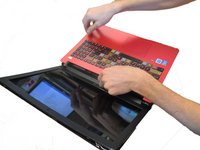
Lift Palm Rest away.
-
Replace with new palm rest.
-
-
-
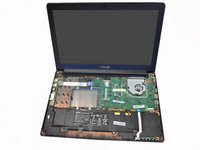
Next, locate the battery in the front of laptop (closest to you).
-
-
crwdns2935267:0crwdne2935267:0Tweezers$4.99
-
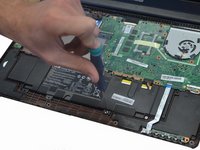
Unplug the battery from the laptop in the upper right hand corner of the battery using tweezers.
-
-
-
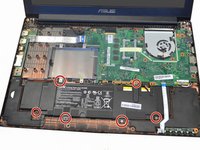
Use the Phillips #00 Screwdriver to carefully remove the 6 screws holding the battery in place.
-
Once you have removed all six screws carefully lift the battery out and dispose.
-






To reassemble your device, follow these instructions in reverse order.
crwdns2935221:0crwdne2935221:0
crwdns2935229:05crwdne2935229:0

crwdns2935287:0crwdne2935287:0

Clemson, Team 14-1, Shirley Winter 2015 crwdns2935289:0Clemson, Team 14-1, Shirley Winter 2015crwdne2935289:0
CLEM-SHIRLEY-W15S14G1
crwdns2931471:05crwdne2931471:0
crwdns2935297:05crwdne2935297:0
crwdns2947410:01crwdne2947410:0
Thank you for posting this
SteveFFFFF 0 - crwdns2934203:0crwdne2934203:0 crwdns2950251:0crwdne2950251:0
